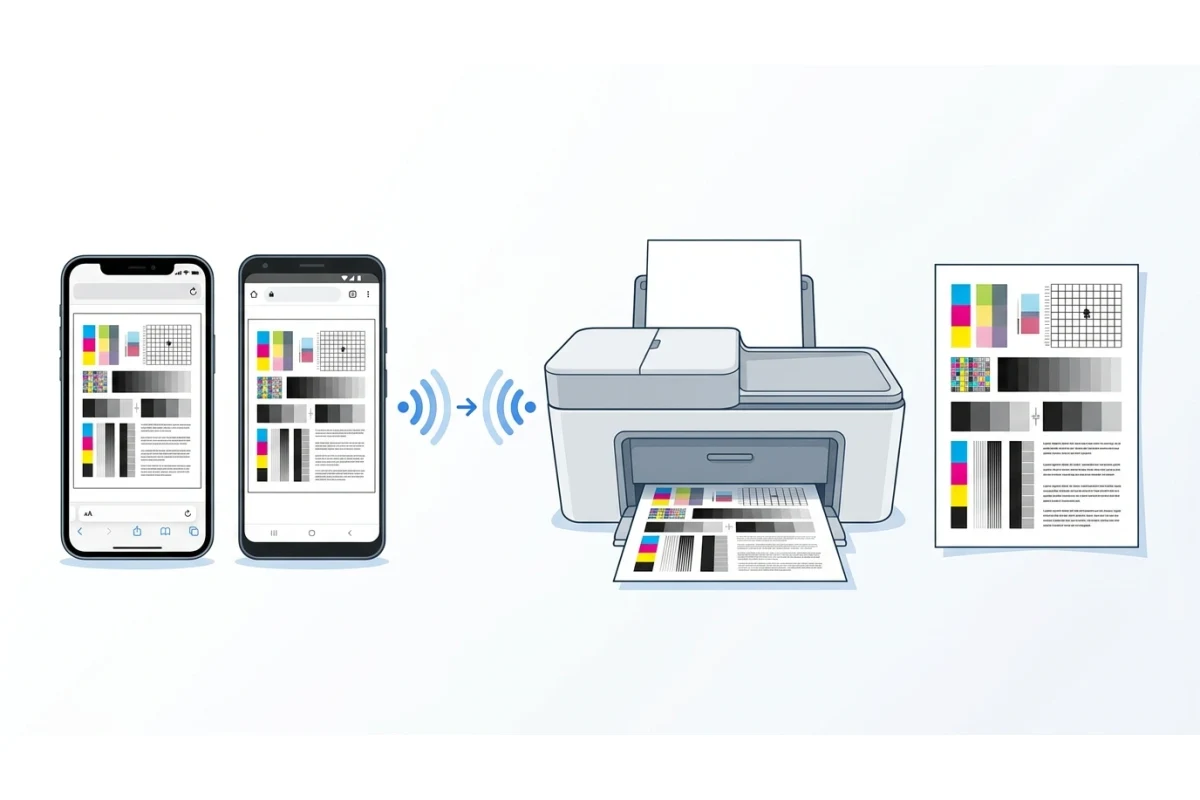
Most "how to print a test page" instructions assume you're sitting at a laptop with a Settings menu to dig through. That's not always where you are — plenty of people are checking a home or office printer straight from their phone, whether they're away from their desk or just don't have a computer set up at all. Neither iOS nor Android has a built-in "print test page" button the way Windows does, but there are a couple of reliable ways to get the same result.
Why Phones Handle This Differently
Windows and Mac both have an operating-system-level printer settings screen with a dedicated test-page option, because both were designed around the idea of managing installed hardware. iOS and Android were built print-optional from the start — printing happens through individual apps rather than a central device manager, using Apple's AirPrint or Android's print framework (usually backed by Mopria). Neither of those systems ships a diagnostic test page of its own; they're built to print whatever document or webpage you hand them.
The Fastest Method: Print This Page Directly
Since your phone can print any webpage through its browser, the simplest option is to open a real test page — ours included — and print it the same way you'd print anything else.
On iPhone or iPad (Safari)
- Open Safari and go to printerprinttest.com
- Choose the test page you want — color or black & white
- Tap the Share icon (the square with an arrow pointing up)
- Scroll down and tap Print
- Confirm your printer is selected under Printer, set copies if needed, then tap Print in the top corner
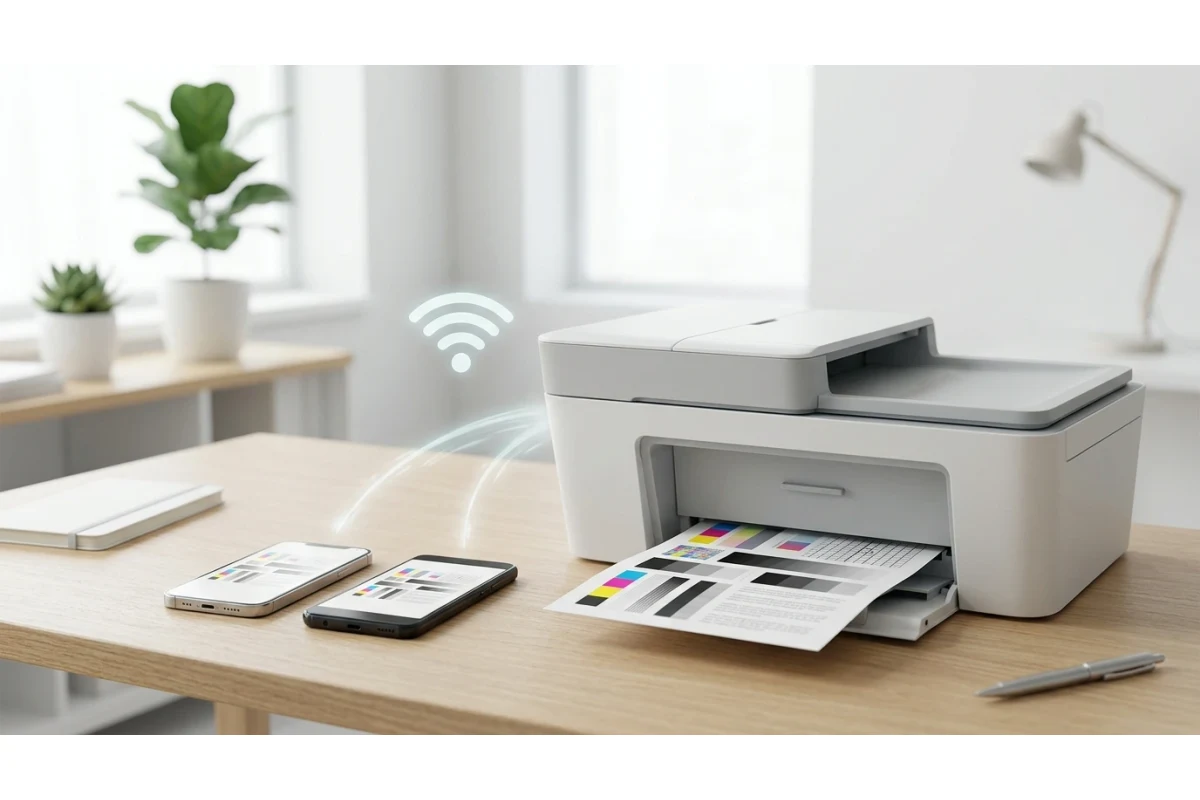
This uses AirPrint, which works with most modern printers over the same Wi-Fi network automatically — no app or driver install required.
On Android (Chrome)
- Open Chrome and go to printerprinttest.com
- Choose the test page you want to run
- Tap the three-dot menu in the top right corner
- Tap Share, then Print (or tap Print directly if it's already in the menu)
- Select your printer from the list, then tap the print icon
Android handles this through its built-in print framework, which typically relies on Mopria Print Service to discover and talk to nearby printers. If your printer doesn't show up, see the troubleshooting section below.
The Other Option: Your Printer Brand's App
If you want an actual diagnostic tool rather than just printing a webpage, most major printer brands offer a free app with a built-in test print or nozzle check function, which talks to the printer more directly than a generic print job:
- HP Smart (iOS/Android) — includes a Print Quality Diagnostic tool under printer settings
- Epson Smart Panel (iOS/Android) — has a dedicated Nozzle Check and cleaning option
- Canon PRINT (iOS/Android) — includes maintenance tools with a test print function
- Brother Mobile Connect (iOS/Android) — offers print quality checks alongside standard printing
These apps are worth installing if you own one of these brands and print from your phone regularly — see our dedicated guides for HP, Epson, Canon, and Brother printers for brand-specific setup steps.
If Your Printer Doesn't Show Up
| Problem | Likely fix |
|---|---|
| Printer missing from the print menu (Android) | Go to Settings > Connected devices > Printing, and confirm a print service (usually Mopria or your printer brand's) is enabled |
| Printer missing from the print menu (iPhone/iPad) | Confirm the printer supports AirPrint and is on the same Wi-Fi network; older printers without AirPrint need the brand's app instead |
| Phone and printer are both "connected" but can't see each other | Check you're not on a guest Wi-Fi network — guest networks often isolate devices from each other by design |
| Print job sent but nothing happens | See our wireless printer troubleshooting guide for network-specific causes |
Frequently Asked Questions
Do I need to install an app to print a test page from my phone?
No — opening a browser-based test page like ours and using your phone's built-in Share > Print option works without installing anything, using AirPrint on iOS or Android's print framework. An app is only necessary if you want brand-specific diagnostic tools like a nozzle check.
Why can't I find a "print test page" button in my phone's settings?
Unlike Windows or Mac, neither iOS nor Android has a central printer-management screen with a built-in diagnostic page — printing on mobile happens per-app rather than at the operating system level, so there's no equivalent menu to look for.
Does this work the same on a tablet as a phone?
Yes — iPadOS uses the same AirPrint system as iOS, and Android tablets use the same print framework as Android phones, so the steps above apply identically on either.