Troubleshooting
Streaky HP Prints? Test First, Then Clean the Printhead
Print a color test page on your HP, work out what the streaks or gaps mean, and run the clean printhead cycle without burning through ink.
Free · Browser-based · No sign-up
Run a printer print test to check your printer's color accuracy, black & white output, and overall print quality in seconds. No download, no software, no sign-up — just open, adjust, and print.
Each page is a live, printable diagnostic sheet. Open one, press Print, and compare the result with what a healthy printer should produce.
CMYK and RGB color bars plus a swatch grid to check for accurate, even color output.
Open color test pageGrayscale steps, solid black fill, and text samples for mono and laser printers.
Open black & white testEvery test page can be saved as a PDF straight from your browser's print dialog — no separate download needed.
Save a test page as PDFEstimate how much misprints and wasted pages are costing your office each year.
Open the cost calculatorSkin tones, sky gradient, foliage greens, and a neutral gray reference for photo printing.
Open photo test pageGrid, corner registration marks, and diagonal lines to check margins and page skew.
Open alignment test pagePer-color fine lines (K/C/M/Y) to spot clogged inkjet nozzles before a big print job.
Open nozzle check pageBrand-specific pages, single-ink color tests, and A3, A4, A5 and Legal paper size tests in one place.
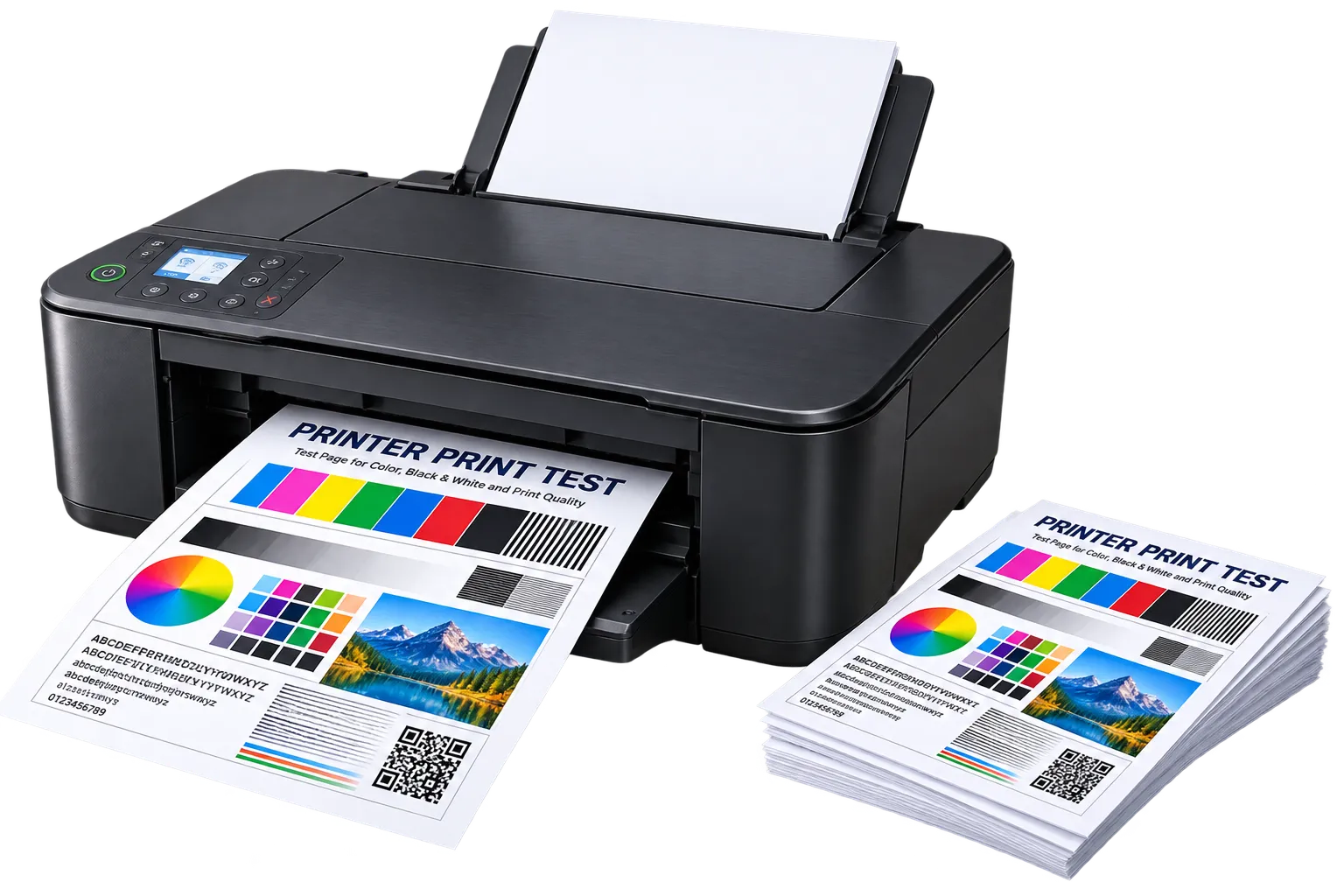
See all printer test pagesA complete, one-page printer print test covering color bars, grayscale steps, text sharpness, and a solid black block — everything you need for a quick overall check.
Before you print: open your browser's print dialog (Ctrl/Cmd+P), then under "More settings" enable Background graphics. Without it, the color and gray bars below will print blank.
Pick color or black & white based on what you want to check.
No download or install — the page is ready the moment it loads.
Use Ctrl/Cmd+P and enable Background graphics for accurate color.
Check bars, grayscale, and text against what a healthy print should look like.
Match what you see on your printed page to the symptom below, then follow the guide for that fix.
Thin white lines through color bars usually mean low ink or a clogged nozzle.
Diagnose the cause →A cartridge that's empty or seated wrong shows up as a missing color bar entirely.
Diagnose colors →Regular horizontal stripes across a solid fill usually mean the print head needs cleaning.
Diagnose the cause →Feathered small text points to alignment issues or a dirty print head.
Diagnose the cause →The most common sign of a low or unevenly distributed toner cartridge.
Diagnose the cause →A pink, blue, or green cast in what should be plain gray means your color balance is off.
Read the color calibration guide →Constant jams usually trace back to worn rollers, humidity, or an overfilled tray.
Fix paper jams →Almost always a software or network hiccup, not an actual hardware problem.
Get it back online →Run through these before digging deeper — most "broken" printers turn out to be one unchecked box on this list. Your progress is saved in this browser.
Test page came out completely blank? Read why a test page prints blank. Printer won't print at all? Start with fixing a printer that shows offline.
Every test page runs entirely in your browser, so it works the same way regardless of brand or driver. Jump to brand-specific tips, or isolate a single ink channel or paper size.
Troubleshooting
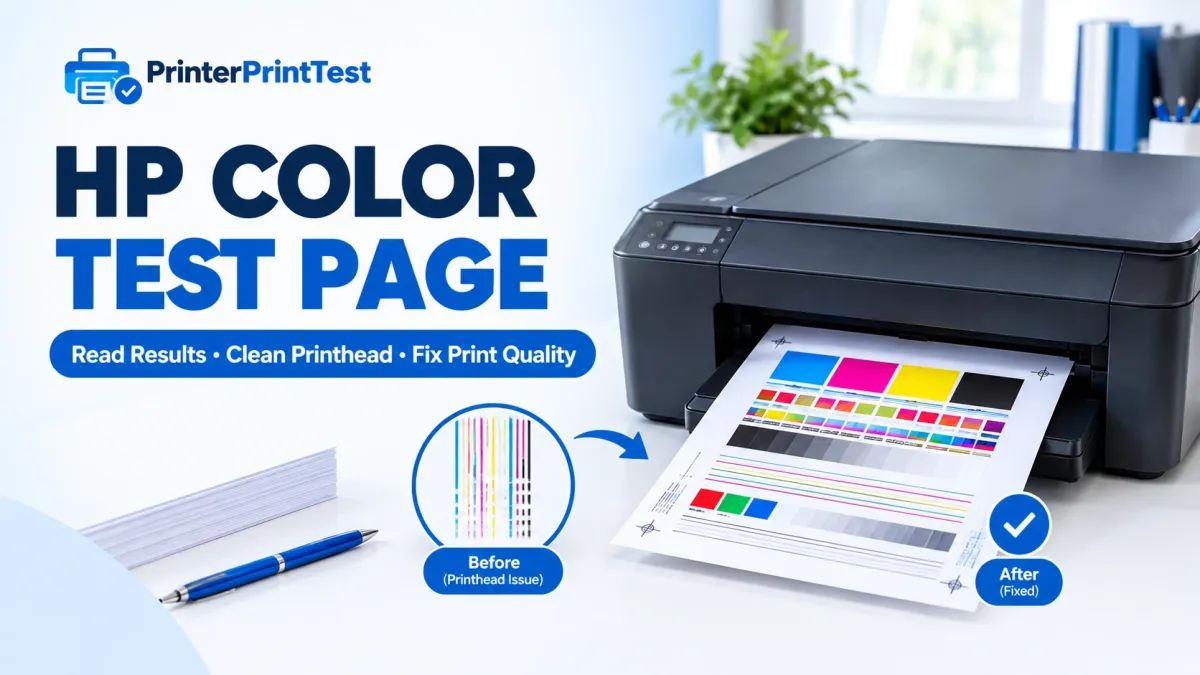
Print a color test page on your HP, work out what the streaks or gaps mean, and run the clean printhead cycle without burning through ink.
Guides
Which built-in HP report to print, and the exact buttons for Ink Tank 315/415, Smart Tank 515, DeskJet 2135, ENVY, and LaserJet printers.
Guides
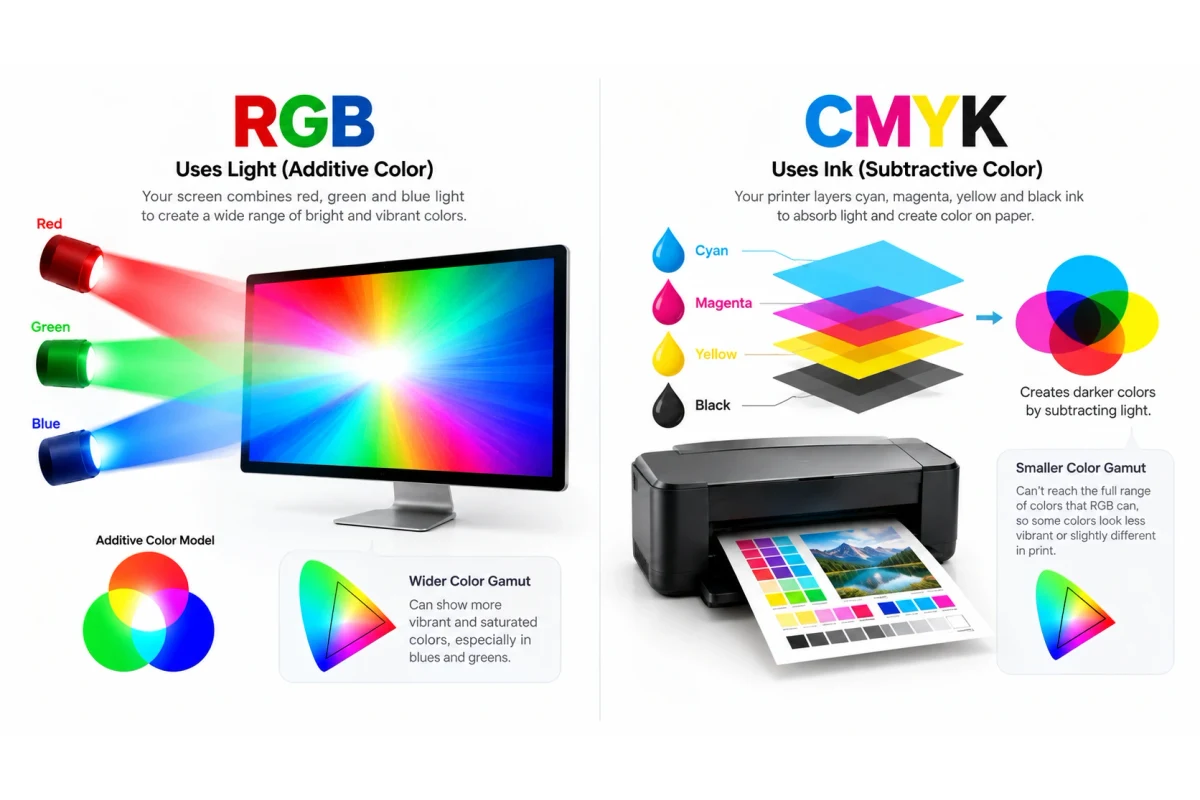
Your monitor uses RGB, your printer uses CMYK, and that mismatch is why printed colors look duller than expected. Here's what's actually happening.
Every test page is free to use, with no limits or paywalls.
No account, no email, no personal information required.
Use your browser's own print dialog — print directly or save a PDF copy.
Test sheets render live, so output is crisp at your printer's full DPI — not a scanned image.
Runs through your existing driver — no brand-specific software needed.
No install, no wait — open a page and you're ready to print.
PrinterPrintTest makes free printer test pages and troubleshooting guides that print from any browser, with no account and nothing to install. Read more about us and how the test pages work.
A printer test page is a single sheet that shows whether your printer is working properly before you print something that matters. It prints color bars, gray steps, text at several sizes and a solid black block. Faded bars, white streaks, blurry text or a gray “black” each point to a specific problem you can fix.
It isn't the same as your printer's built-in self-test (or configuration) page, which the printer prints on its own, or the Print test page button in Windows printer settings. The guide on how to print a test page covers all three.
| If you see | Print this |
|---|---|
| Faded, missing or wrong colors | Color test page |
| Gray instead of black, or fuzzy text | Black and white test page |
| Thin white lines or gaps on an inkjet | Nozzle check test page |
| Crooked output, doubled lines or cut-off edges | Alignment test page |
| Photos look wrong but documents look fine | Photo test page |
| You suspect one ink or one paper size | Single-color pages or paper size pages |
To run a printer print test, open any test page on this site, press Ctrl+P (Cmd+P on Mac), make sure "Background graphics" is turned on in the print options, and print. No download or extra software is required.
Some printers print a status/test page on their own after firmware updates, paper jams, or when a new cartridge is installed — that's the printer's own built-in page, separate from the ones on this site, and is usually a one-time diagnostic event.
Solid, even color bars with no white streaks, a smooth grayscale gradient with no sudden jumps, crisp small text, and an evenly solid black block with no visible banding.
No. Every test page on this site prints directly from your browser using your printer's existing driver — there's nothing to install.
Question not answered here? Send it to us on the contact page.