
A paper jam is one of those problems that feels random in the moment but almost never actually is. If your printer jams once in a blue moon, that's normal wear and tear. If it's jamming every few pages, or every time you print something specific, there's a real, fixable cause behind it — and it's rarely "the printer is just old."
Here's how to clear a jam without damaging anything, the five most common reasons printers jam repeatedly, and how to stop it from happening again.
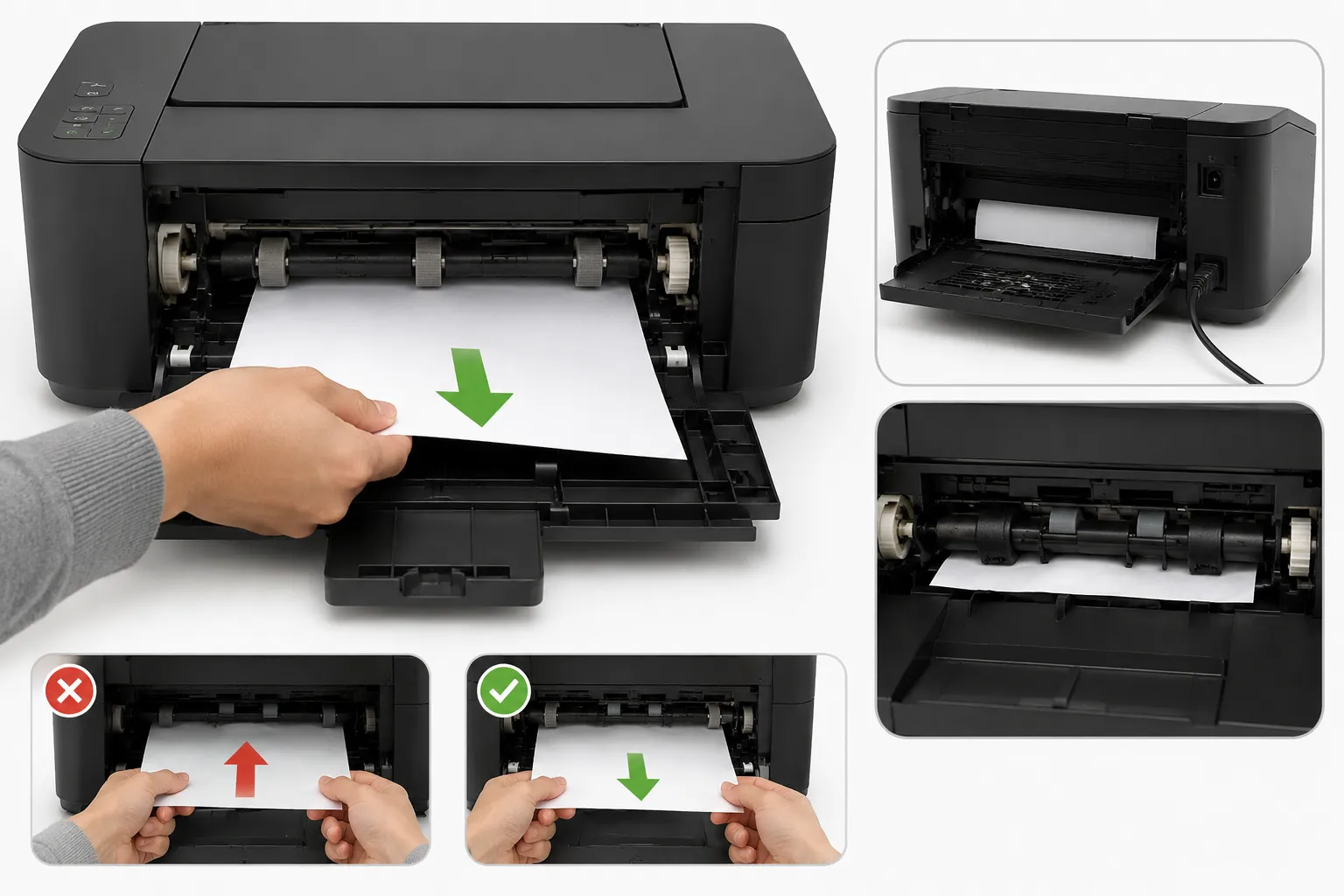
How to Clear a Paper Jam Safely
Ripping paper out the wrong way is the single most common way people turn a simple jam into an expensive repair. Follow this order instead:
- Turn the printer off and unplug it if you can — this releases tension on the rollers and prevents the mechanism from trying to keep feeding while you're reaching inside
- Open every access point — the main cover, rear access panel, and paper tray. Most jams are easier to reach from the back or bottom than by pulling from the top
- Pull gently in the direction the paper was already traveling, not backward against the feed path. Pulling against the mechanism is what bends rollers and snaps internal gears
- Check for torn scraps left behind. If the jammed sheet tore, small pieces can stay lodged inside and cause the very next print to jam again
- Close everything back up fully before powering on — most printers refuse to print (or throw a fake "jam" error) if a panel isn't latched all the way
Never yank paper straight out against the direction of the feed rollers. It's the fastest way to bend a roller or strip an internal gear, turning a two-minute fix into a repair. If a sheet won't move gently, stop and check for a second access panel closer to where it's stuck.
Why Your Printer Keeps Jamming
If clearing the jam only buys you a few pages before the next one, one of these five is almost always the reason:
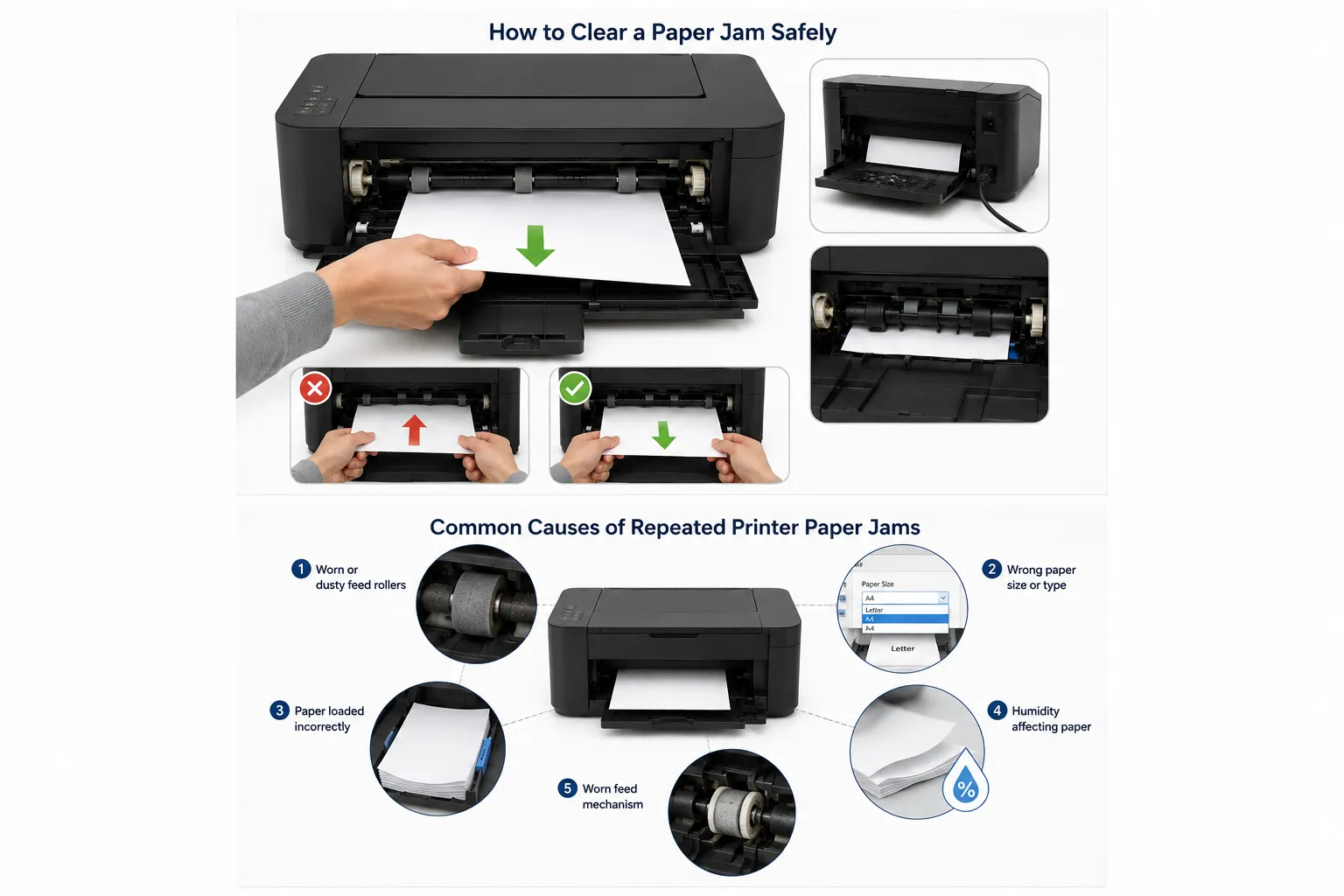
1. Worn or dusty rollers
The rubber feed rollers that grip and pull paper through lose traction over time as they collect dust, or simply wear smooth with age. This is by far the most common cause of frequent jamming in printers more than a couple of years old. A rubbing-alcohol-dampened lint-free cloth wiped across the rollers restores grip in most cases — see our full roller cleaning guide for the complete process and when to replace rather than clean.
2. Wrong paper size or type selected
If your print settings specify a different paper size than what's actually loaded in the tray, the printer can misjudge where the page edge is and jam trying to feed it. Double-check that the size selected in your print dialog matches what's physically in the tray.
3. Paper loaded incorrectly
Overfilling the tray past its fill line, loading paper unevenly, or leaving the paper guides too loose (letting sheets shift side to side) are all common self-inflicted causes. Tap the stack on a flat surface to square the edges before loading, and slide the guides snug against the paper — not tight enough to bend it, just enough to stop it wandering.
4. Humidity affecting the paper
Paper stored somewhere humid absorbs moisture and sheets start sticking together, which the printer's rollers read as one thick sheet and jam trying to pull through. Fanning the stack before loading separates any sheets that have stuck together, and storing paper in a closed ream wrapper when it's not in use prevents this in the first place.
5. A worn-out feed mechanism
On older printers that jam constantly no matter what you try, the feed rollers themselves may simply be worn past the point cleaning can fix. Replacement roller kits exist for most printer models and are far cheaper than a new printer, if everything else here has been ruled out first.
"Paper Jam" Error With No Paper Stuck Inside
This confusing case is more common than you'd think, and it's almost never a false alarm. It usually means:
- A torn scrap of paper is still lodged somewhere the sensor can detect but you can't easily see
- A jam sensor flap is stuck in the "paper present" position and needs to be gently reset by hand
- A previous jam wasn't fully cleared, even though the visible paper came out
Open every panel again and run a hand along the paper path — these leftover scraps are often smaller and further in than the original jam was.
How to Prevent Future Jams
- Fan the paper stack before loading it, every time — it takes five seconds and separates sheets that have started sticking together
- Don't overfill the tray past its marked fill line, even if more paper physically fits
- Match paper weight to your printer's spec. Card stock or heavy photo paper in a printer only rated for standard paper is a common, avoidable cause of jams
- Clean the rollers every few months if you print often, especially in dusty environments
- Store paper somewhere dry, ideally still in its wrapper until you're ready to load it
Frequently Asked Questions
Why does my printer jam on the same page every time?
If it's always a specific page in a document, the issue is usually that page's paper type or weight (like a photo insert mixed into a text document), not the printer itself. If it's always the same physical spot in the tray, worn rollers are the more likely cause.
Can a paper jam damage my printer permanently?
The jam itself rarely causes permanent damage. Forcefully yanking paper out against the feed direction is what causes lasting damage, by bending rollers or stripping internal gears — always pull gently and in the direction the paper was already moving.
Why does my printer say "paper jam" when the tray is empty?
This usually means a torn scrap from a previous jam is still stuck somewhere inside, or a paper sensor is stuck in the "detected" position. Open every access panel and check the full paper path by hand, not just the tray.