Something's off with your printer. Maybe the last document came out streaky, maybe a color looks wrong, or maybe you just set up a new printer and want to make sure it's actually working before you trust it with something important. Either way, the fastest way to find out what's going on is to print a test page.
A print test page is a simple diagnostic printout — usually a mix of color bars, grayscale steps, and sample text — designed to show you exactly how your printer is performing right now. It only takes a minute to print, and reading it takes even less time. This guide walks through what a test page shows you, how to print one on Windows, Mac, or directly from the printer itself, and what to do if something looks wrong (or nothing prints at all).
What a Printer Test Page Shows You
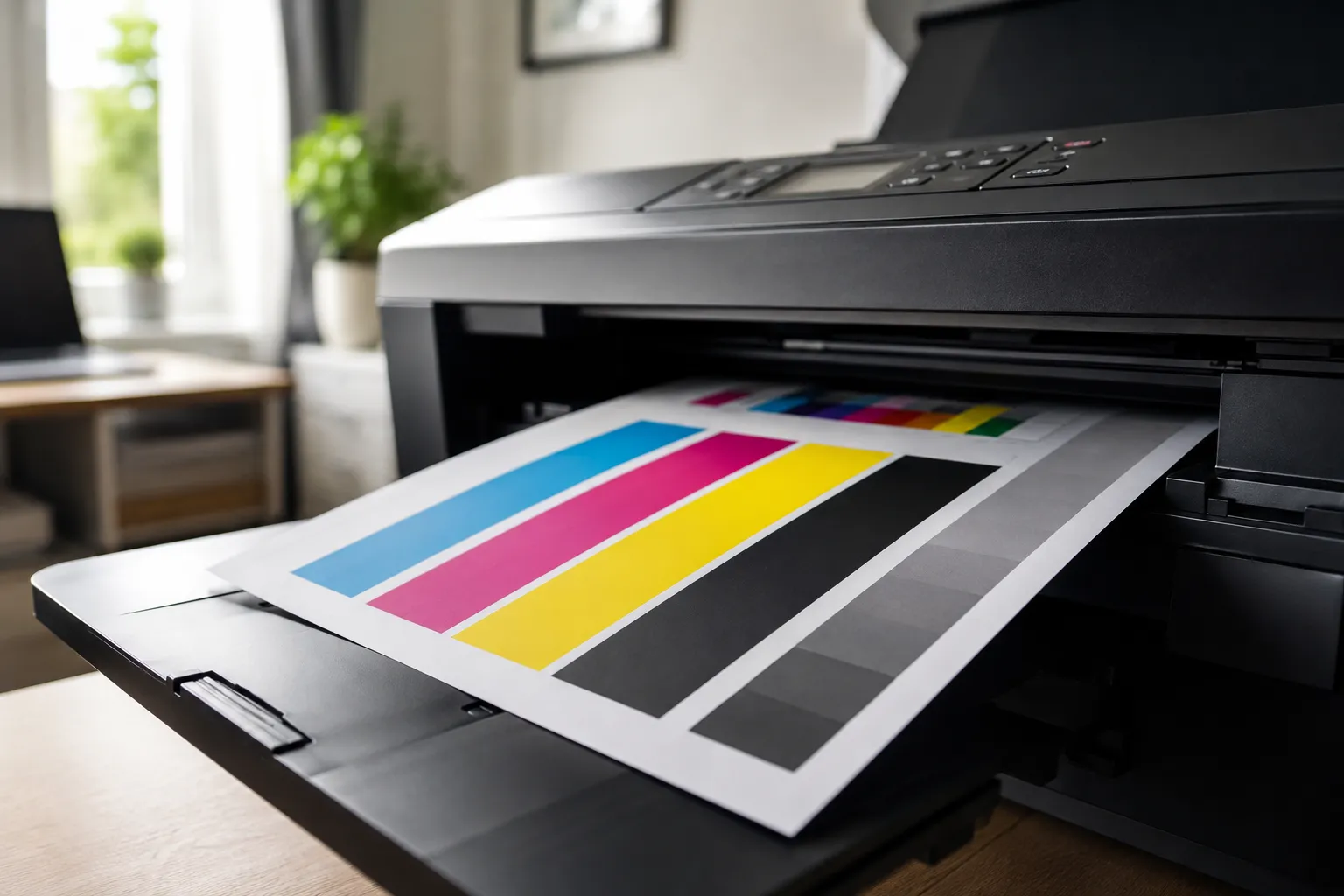
Before you go looking for a repair guide or a new ink cartridge, a test print gives you a quick, honest snapshot of your printer's health. A typical test page includes a few key elements:
- Color bars — solid blocks of cyan, magenta, yellow, and black (and sometimes red, green, and blue) to check that every color channel is printing evenly
- Grayscale steps — a gradient from black to white, used to check contrast and make sure your printer isn't printing everything too dark or too light
- Text samples — lines of text at different sizes, which reveal blurry edges, smudging, or alignment issues
- A solid black block — an easy way to spot streaking or faded ink at a glance
Instead of guessing whether a problem is your ink, your printer driver, or just a one-off glitch, a test page gives you something concrete to look at. If everything prints cleanly, you know your printer itself is fine and the issue is probably with the specific document or software you were using. If it doesn't, the test page usually points you straight to the cause.

How to Print a Test Page on Windows
If you're on a Windows PC, printing a test page takes under a minute and doesn't require opening any document:
- Open Settings and go to Bluetooth & devices → Printers & scanners
- Click on the printer you want to test
- Select Printer properties
- On the General tab, click Print Test Page
Windows will send a built-in diagnostic page straight to your printer using the current driver settings — which is actually useful information on its own. If this fails or looks wrong, you know the problem lives in your driver or hardware setup, not in whatever app you were using before.
If you'd rather not dig through printer settings, you can also run a print test page right here in your browser — no driver menus, no installation, just open the page and print. Try the free printer test page →
How to Print a Test Page on Mac
On macOS, the process is just as quick, though it lives in a slightly different menu:
- Open System Settings (or System Preferences on older macOS versions)
- Go to Printers & Scanners
- Select your printer from the list
- Click Options & Supplies
- Open the Utility tab and click Open Printer Utility
- Look for a Test Print or Print Test Page button in the utility window (the exact wording varies by printer brand)
Not every Mac printer utility includes a dedicated test-page button — some only offer alignment or cleaning tools. If yours doesn't, printing a test page from your browser works just as well and gives you the same read on color accuracy and print quality.
How to Print a Test Page Directly From the Printer (No Computer Needed)
Most standalone printers can run a self-test without being connected to a computer at all, which is handy for quickly ruling out a hardware issue. While the exact steps vary by brand and model, the general process usually looks like this:
- Make sure the printer is powered on and loaded with paper
- Open the printer's control panel menu (often labeled Setup, Maintenance, or a wrench/gear icon)
- Look for an option like Print Report, Print Quality Report, or Self-Test
- Select it and let the printer handle the rest
Many printers also support a button-based test print: holding down a specific button combination (often the Cancel or Resume button) while powering the printer on will trigger a built-in test page. Check your printer's manual for the exact combination, since it differs from one manufacturer to the next.
What to Check on the Printed Page
Once your test page is in hand, take a close look at it in good lighting. Here's what healthy output should look like — and what common problems usually mean:
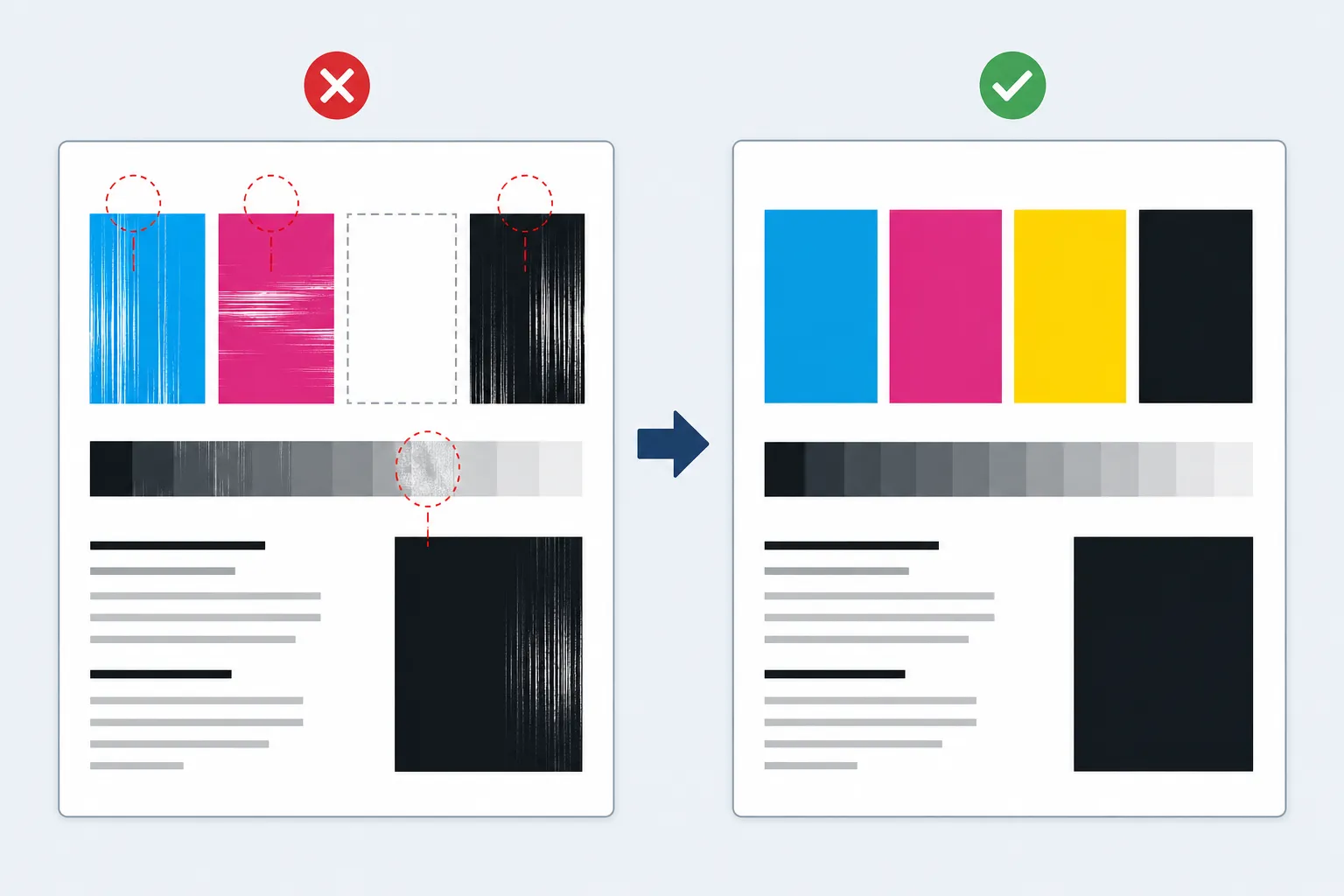
| What you see | Likely cause |
|---|---|
| Streaks or thin white lines through a color block | Clogged print head or nozzle — run a cleaning cycle |
| A color missing entirely | Empty, improperly seated, or dried-out cartridge |
| Faded or washed-out sections | Low ink/toner, or a print quality setting that's too low |
| Blurry or doubled text | Print head alignment issue — use your printer's alignment tool |
| Banding (repeating horizontal stripes) | Needs a cleaning cycle, or redistributing toner on laser printers |
If everything looks solid, even, and sharp, your printer is in good shape and any issue you were having is likely tied to a specific file, app, or print setting rather than the hardware itself. If you want to go a level deeper on the streaking/missing-color diagnosis, see how to read a nozzle check pattern.
What to Do If the Test Page Won't Print or Looks Wrong
If nothing prints at all, or the test page comes out clearly broken, don't reach for a new cartridge just yet. Work through these basics first:
- Check the connection — make sure the printer is properly connected via USB or Wi-Fi and that it's selected as the correct default printer on your device
- Confirm there's paper and ink — an empty tray or a cartridge sensor error will silently block printing on most models
- Clear the print queue — a stuck previous job can prevent new ones from printing; cancel anything pending and try again
- Run the built-in cleaning cycle — most streaking, banding, and missing-color issues are fixed this way, not by replacing ink
- Restart the printer — it sounds too simple to work, but a lot of printer glitches are cleared by a full power cycle
- Update or reinstall the driver — an outdated or corrupted driver can cause a test page to print garbled text or fail silently
If the page prints but the output itself looks wrong — faded, streaky, banded, blank, or blurry — see our printer print quality problems guide for what each specific symptom means.
If you've worked through all of that and it still won't print, the cause is usually one of three more specific things: the printer shows as offline even though it's connected, Windows is throwing an actual error code instead of failing silently, or paper isn't feeding at all because of a jam somewhere in the paper path. Each of those has its own dedicated fix.
Frequently Asked Questions
What is a print test page used for?
A print test page checks your printer's overall health — color accuracy, ink coverage, alignment, and text sharpness — in one quick printout, so you can catch problems before they show up in something you actually care about.
How do I print a test page without opening any documents?
On Windows or Mac, you can print a test page straight from your printer's settings menu, no document required. You can also run one from most printers' own control panel, or use an online test print page from your browser.
Why does my test print page look faded or streaky?
Faded output usually means low ink or toner, while streaks typically point to a clogged print head or nozzle. Running a cleaning cycle from your printer's maintenance menu resolves most of these cases.
Can I print a test page if my printer isn't connected to a computer?
Yes. Most printers can run a self-test or diagnostic report directly from their control panel, or via a button combination at power-on, without needing to be connected to any device.
Related Guides
- Color Printer Test Page
- Black & White Printer Test Page
- Epson Test Print Guide
- HP Test Print Guide
- Canon Test Print Guide
- Printer Print Quality Problems Explained
- Test Page Won't Print? Windows Error Codes Explained
- Printer Offline? How to Fix It
- How to Read a Nozzle Check Pattern
- Why Your Printer Keeps Jamming