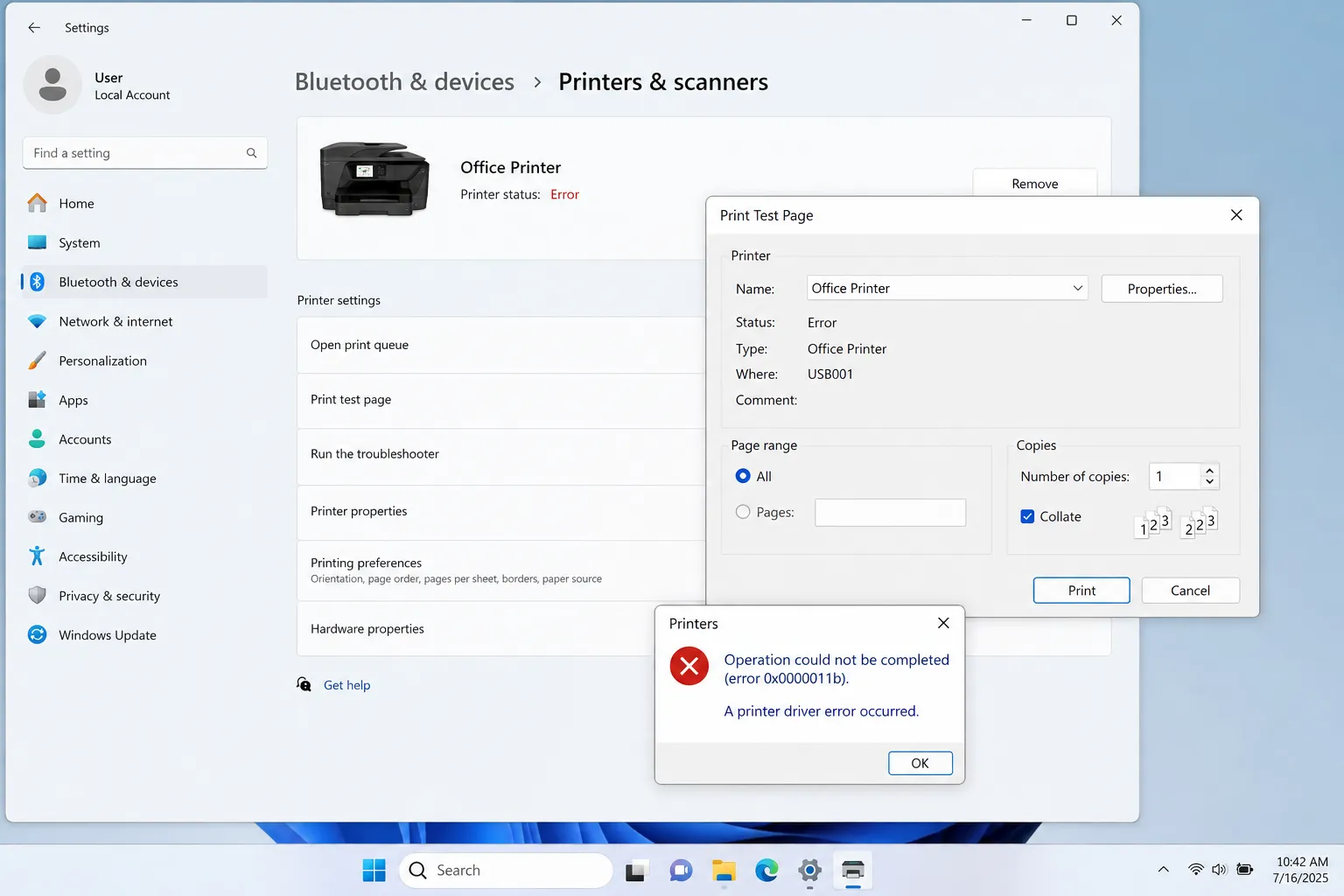
You right-clicked your printer, hit Print Test Page, and instead of a diagnostic sheet you got an error message with a code that looks like it belongs in a stack trace, not a printer dialog. It's a genuinely common moment — Windows' built-in test print goes through the exact same print pipeline as everything else, so when that pipeline is broken, the test page is often the first thing to expose it.
This guide covers what the most common Windows test-page error codes and messages actually mean, and the specific fix for each — not just "restart your computer."
If you haven't already worked through the basics — connection, default printer, print queue, driver — start with our general test page troubleshooting guide first. This article picks up where that one leaves off, for when Windows gives you an actual error code instead of just failing silently.
Quick Reference: What Each Error Means
| Error | What it usually means |
|---|---|
| 0x0000011b | Windows Point and Print policy blocking a shared/network printer connection |
| 0x0000007a | Printer stopped responding mid-job — connection or driver communication failure |
| "Operation could not be completed" | The Print Spooler service isn't running |
| "Element not found" | A driver file or component the printer needs is missing or broken |
| "Parameter is incorrect" | Corrupted print queue data or a permissions issue in the spooler folder |
| Stuck on "Printing..." forever | A jammed job at the front of the queue blocking everything behind it |
Error 0x0000011b
This one appeared for a lot of people after a Windows security update changed how "Point and Print" works — the feature that lets your computer automatically download a driver from a shared or network printer. The update tightened default permissions, and printers that used to connect without issue started failing with this exact code.
How to fix it:
- Make sure Windows is fully up to date (later patches refined this behavior)
- If you manage the printer yourself, connect to it by its IP address or a direct driver install instead of a shared network path
- On a managed/work network, this typically needs an IT administrator to adjust the Point and Print Group Policy setting — it's not something you can safely change alone on a company machine
Error 0x0000007a
This code means the printer stopped responding partway through a job, rather than failing to start at all. It's a communication breakdown, not a missing-driver issue.
How to fix it:
- Reconnect the USB cable, or confirm the printer hasn't dropped off Wi-Fi
- Restart the Print Spooler service (see below) to clear whatever job it choked on
- Reinstall the printer driver — a mismatched or outdated driver is a common root cause of mid-job communication failures
"Operation Could Not Be Completed"
This message almost always means the Print Spooler — the Windows service that manages every print job on your system — isn't running. Here's how to restart it:
- Press Win + R, type
services.msc, and press Enter - Scroll to Print Spooler in the list
- Right-click it and choose Restart (or Start, if it's currently stopped)
- Try printing the test page again
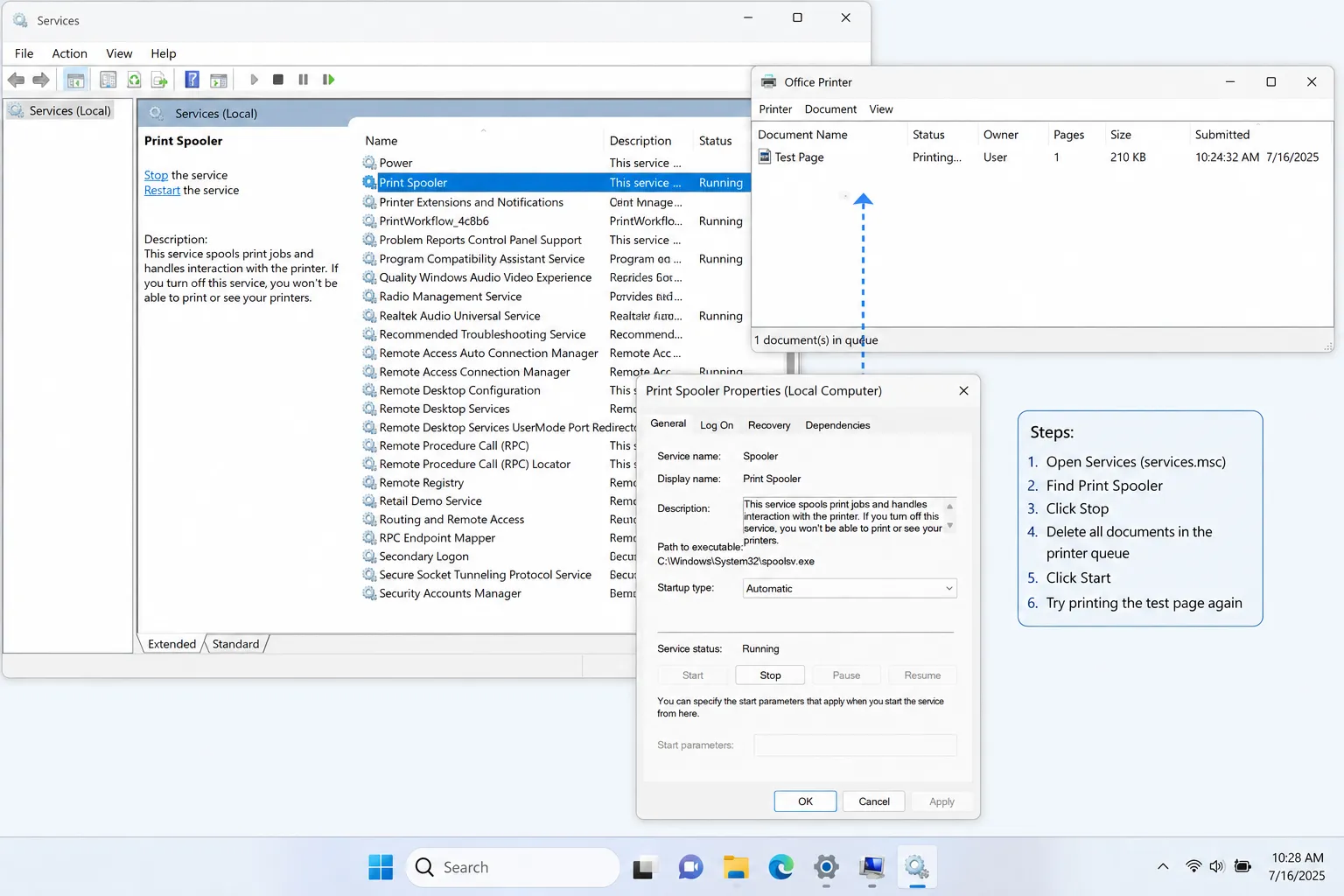
If the Print Spooler refuses to start at all, an old stuck print job file can be the cause — see the stuck-queue section below.
"Element Not Found"
This points to a missing or corrupted piece of the printer driver itself, not a connection problem. It usually shows up after an incomplete driver update or a Windows update that didn't fully reconcile with an older driver version.
How to fix it: Remove the printer entirely from Settings > Bluetooth & devices > Printers & scanners, restart your computer, then reinstall the printer using the latest driver from the manufacturer's website rather than letting Windows redetect it automatically.
"Parameter Is Incorrect"
This one is usually caused by corrupted files sitting in the print spooler's queue folder, or a permissions issue preventing Windows from writing to it.
How to fix it:
- Stop the Print Spooler service (via
services.msc, as above) - Open
C:\Windows\System32\spool\PRINTERSand delete everything inside the folder (these are just queued job files, safe to remove) - Restart the Print Spooler service
- Try the test page again
Test Page Stuck on "Printing..." and Never Finishes
This is almost always one bad job sitting at the front of the queue, silently blocking every job after it — including your test page. Open the printer's queue, cancel anything listed, and try again. If a job refuses to cancel normally, restarting the Print Spooler service (above) forces it to clear.
Restarting the Print Spooler service fixes a genuinely large share of test-page errors on its own, regardless of which exact code you're seeing. If you only try one thing before digging deeper into a specific code, make it that.
Frequently Asked Questions
Why does my test page fail with an error but regular documents print fine?
This usually points to a driver-level or permissions issue specific to how the test page job is generated, rather than a general connectivity problem. Reinstalling the printer driver resolves most cases like this.
Is it safe to delete files from the print spooler folder?
Yes. The files in C:\Windows\System32\spool\PRINTERS are temporary queued print jobs, not system files. Deleting them only clears stuck jobs and never affects your printer's driver or settings.
Do I need administrator access to restart the Print Spooler service?
Yes, restarting a Windows service requires administrator permissions. On a work or managed computer without admin rights, you'll need IT to do this step for you.