
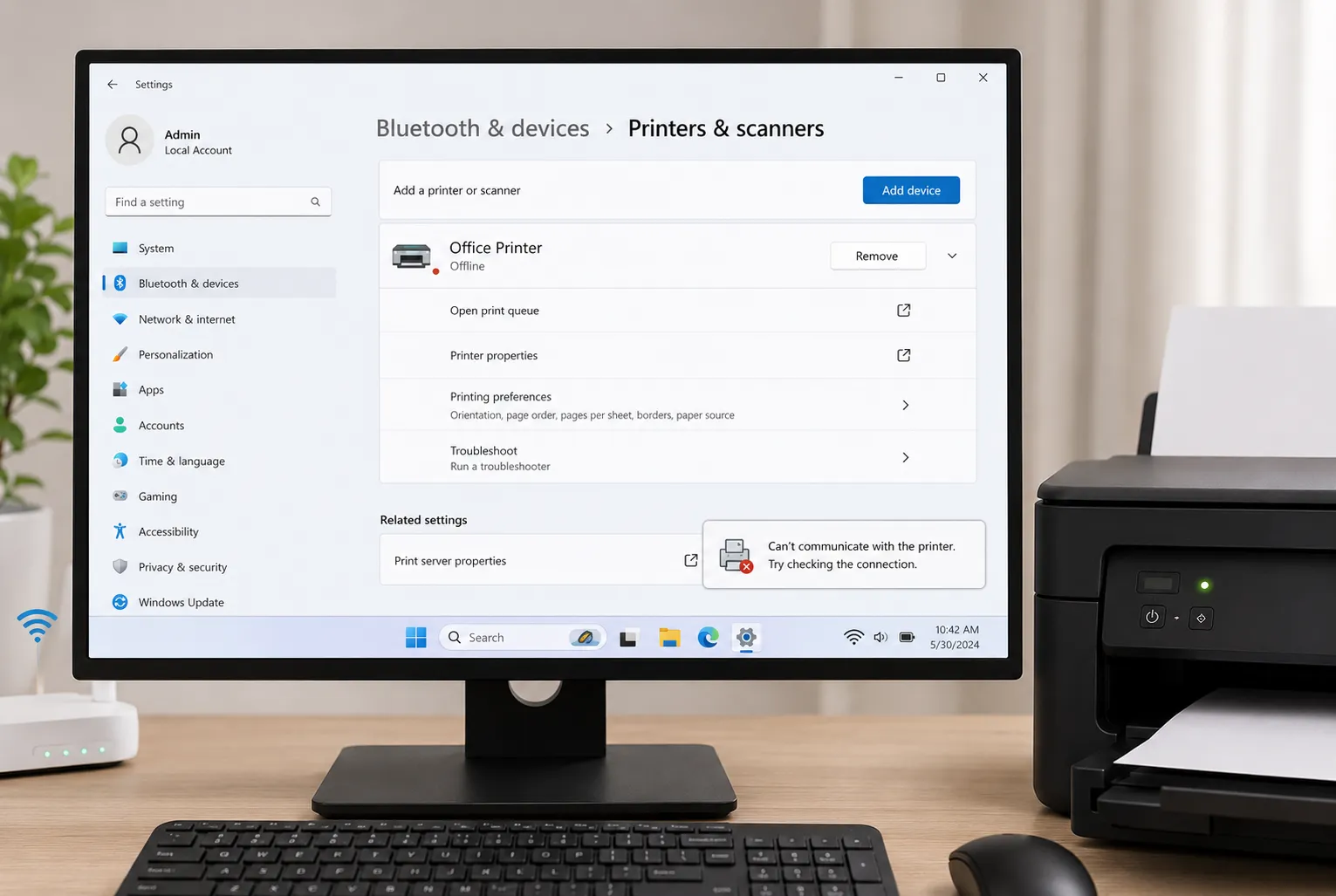
Your printer is plugged in, powered on, and sitting right next to your desk — and your computer still insists it's "offline." It's one of the most common printer complaints there is, and the annoying part is that it usually has nothing to do with the printer actually being off. It's almost always a software or network hiccup between your computer and the printer, and most of the time you can fix it yourself in a few minutes.
This guide walks through why "offline" shows up even when everything looks fine, and how to fix it on both Windows and Mac — plus a few extra steps for Wi-Fi printers, which are the most common culprits.
Why Printers Show "Offline" Even When They're Connected
Before jumping into fixes, it helps to know what's actually going on. "Offline" doesn't mean your printer is broken — it means your computer's print system has lost track of it. A few common causes:
- The wrong printer is set as default — if you have more than one printer listed, your computer may be trying to talk to one that's disconnected or turned off
- Sleep or power-saving mode — many printers appear "offline" simply because they've powered down to save energy and haven't woken up yet
- A stale network address — Wi-Fi and network printers get an IP address from your router, and if that address changes, your computer is still trying to reach the old one
- A stuck print queue — a failed job sitting in the queue can block everything behind it and make the printer look offline
- A loose cable or dropped Wi-Fi connection — the simplest cause, and worth ruling out first
- An outdated or corrupted driver — the software translating between your computer and printer can occasionally get out of sync after an update
How to Fix "Printer Offline" on Windows
Work through these in order — most people are fixed by the first two or three steps:
- Check the physical connection. For USB, unplug and reseat the cable at both ends. For Wi-Fi, confirm the printer's display shows it's connected to your network.
- Set it as the default printer. Go to Settings > Bluetooth & devices > Printers & scanners, click your printer, and make sure "Set as default" is selected.
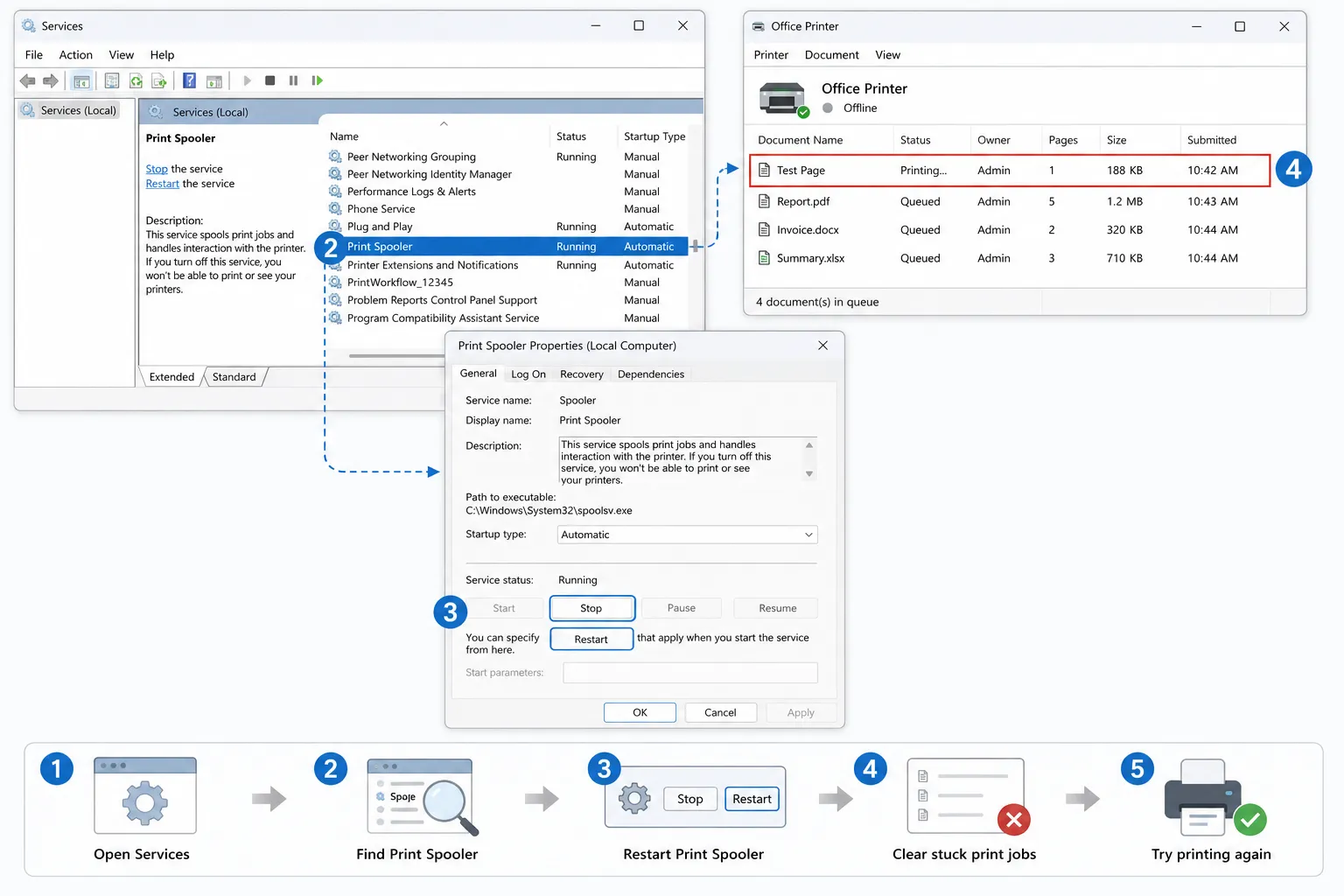
- Clear the print queue. Open the printer's queue from the same settings page, and cancel any jobs stuck at the top — a stalled job can block the printer indefinitely.
- Run the built-in troubleshooter. In the same Printers & scanners menu, click your printer, then Troubleshoot. Windows will check the connection, spooler, and driver automatically.
- Restart the Print Spooler service. Press Win + R, type
services.msc, find Print Spooler, right-click it, and choose Restart. This clears out a surprising number of "offline" issues. - Remove and re-add the printer. If nothing else works, remove the printer from the Printers & scanners list, restart your computer, then add it again — this forces Windows to rebuild the connection from scratch.
If you're not sure whether the issue is Windows or the printer itself, right-click the printer in Devices and Printers and check if "Use Printer Offline" is ticked. It's a manual toggle that's easy to flip by accident, and unchecking it alone fixes the problem more often than you'd expect.
How to Fix "Printer Offline" on Mac
- Check the connection the same way — reseat the USB cable, or confirm the printer is on the same Wi-Fi network as your Mac.
- Open System Settings > Printers & Scanners and check the printer's status. If it shows a warning icon, click it for details.
- Remove and re-add the printer. Click the minus (–) button to remove it, then the plus (+) button to add it back — macOS will rediscover it fresh, which resolves most stuck "offline" states.
- Reset the printing system. Right-click (or Control-click) inside the printer list and choose Reset printing system. This clears every saved printer and queue, so you'll need to re-add your printer afterward, but it fixes deeper software conflicts nothing else will.
- Check for macOS and printer software updates. Outdated print drivers are a common cause of printers silently dropping offline after a macOS update.
Printer Offline Over Wi-Fi? Extra Things to Check
Network printers cause the most repeat "offline" issues, because their connection depends on more moving parts than a direct USB cable. If you've tried the steps above and it still won't stick:
- Restart your router. A surprising number of "randomly goes offline" complaints are actually router issues, not printer ones.
- Check the printer isn't on a separate Wi-Fi band. Some printers only support 2.4GHz, not 5GHz — if your router splits these into separate network names, make sure the printer joined the right one.
- Look for an IP address conflict. If your router reassigns IP addresses periodically, your computer may still be pointed at the printer's old address. Reconnecting the printer to Wi-Fi from its control panel usually resolves this.
- Move the printer closer to the router, at least temporarily, to rule out a weak signal as the cause.
If you restart both your router and printer, power them back on in order — router first, then wait about 30 seconds, then the printer. Powering the printer on before the router finishes booting is a common reason it grabs the wrong network settings and immediately drops back offline.
Confirm the Fix Actually Worked
Once your printer shows as online again, don't just take Windows' or macOS's word for it — send an actual test print. It's the fastest way to confirm the connection is genuinely stable and not about to drop again the moment you print something real. Our free printer test page works straight from your browser, so you don't need to dig back into printer settings to check.
Frequently Asked Questions
Why does my printer keep going offline even after I fix it?
Recurring "offline" issues are usually caused by a Wi-Fi printer losing its IP address after your router reassigns addresses, or a printer dropping into sleep mode and not waking up cleanly. Restarting your router, and setting a static (reserved) IP for the printer in your router settings, usually stops it from happening repeatedly.
How do I know if it's the printer or my computer causing the offline status?
Try printing from a different device on the same network. If the printer works fine from another computer or phone, the problem is local to your original computer's settings, driver, or print queue — not the printer itself.
Does restarting the printer fix "offline" errors?
Often, yes — a full power cycle clears temporary glitches in the printer's network connection or internal memory. If it doesn't help within a minute or two of powering back on, move on to checking the default printer setting and print queue on your computer.
Why does my printer show offline only when I try to print, but online otherwise?
This usually points to a stuck print queue or spooler issue rather than a real connection problem — the printer status looks fine until a job actually needs to be sent. Clearing the print queue and restarting the Print Spooler service (Windows) or the printing system (Mac) usually resolves it.