
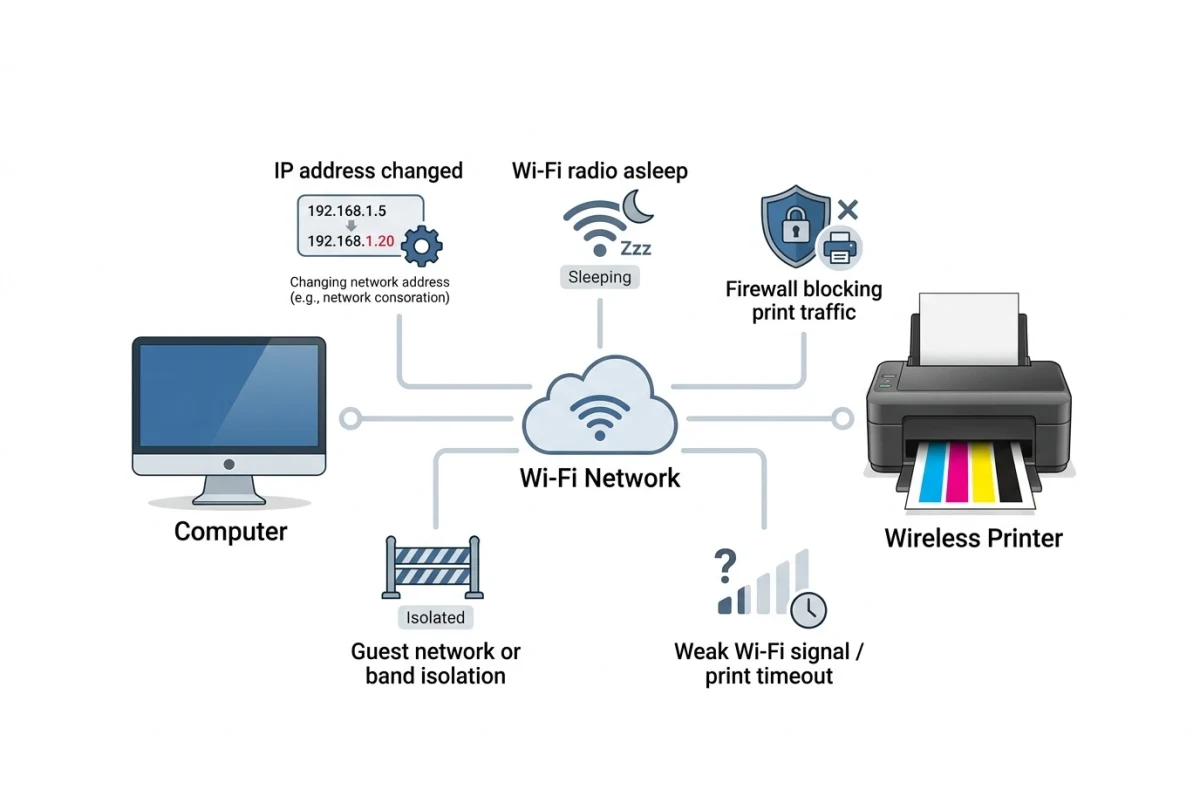
This is a specific, annoying flavor of printer trouble: the printer isn't showing an error, it isn't marked offline, the light on the front looks completely normal — and a test page still won't come out. Nine times out of ten when this happens on a Wi-Fi or network printer, the cause isn't the printer at all. It's the connection between your computer and the printer quietly breaking down in a way that doesn't trigger an obvious warning.
If your printer is already showing as "offline" in Windows or Mac, that's a slightly different (and more common) problem — see our printer offline guide for that. This post is for the case where the printer looks connected and ready, but nothing actually prints, or print jobs disappear without any output.
Why Wireless Printing Fails in Ways USB Never Does
A USB connection is a direct, dedicated cable between two devices — there's no address to look up, no other traffic to compete with, and nothing else on your network can interfere with it. A wireless or networked printer has none of those guarantees. It has to hold an IP address, stay awake and reachable on the network, and get your print job through however many other devices are also using your Wi-Fi at that moment. Any one of those can quietly fail while everything still looks fine on the surface.
The Most Common Causes
1. The printer's IP address changed
Most home and small-office networks assign IP addresses automatically (DHCP), and that address can change after a router restart, a firmware update, or just the lease expiring. Your computer's printer driver, though, often remembers the old address. It looks like the printer is installed and ready, but every job is quietly being sent nowhere.
- Check the printer's current IP address from its own control panel (usually under a network or Wi-Fi settings menu, or printable as a network configuration page)
- Compare it to the address your computer has saved for that printer in your printer settings/ports
- If they don't match, remove the printer and re-add it so it picks up the current address, or set a DHCP reservation on your router so that address never changes again
2. The printer's Wi-Fi radio is asleep
Plenty of printers put their wireless radio into a low-power sleep state after sitting idle, to save energy. Waking it back up can take several seconds — long enough that your computer's connection attempt times out before the printer responds, especially on the very first job after a long idle period.
- Look for a power-save, sleep, or energy-saving setting in the printer's network menu and either disable it or shorten the wake-up trigger
- If a print job fails once but works fine immediately after, this is almost certainly the cause — the failed attempt is what woke the printer up
3. A firewall or antivirus tool is blocking print traffic
Security software occasionally blocks the ports printing uses (particularly after an update or a fresh install), without any visible warning to you. Temporarily disabling your firewall and trying a test print again is a quick way to confirm or rule this out — if it prints instantly with the firewall off, you've found it, and you can add a specific exception for your printer instead of leaving security disabled.
4. Guest networks and band isolation
If your computer is connected to a guest Wi-Fi network, or your router keeps 2.4GHz and 5GHz bands on separate subnets, your computer and printer may technically be on different networks even though both show "connected" to the same Wi-Fi name. Devices on separate guest or isolated networks usually can't see or reach each other at all, which is a common (and confusing) cause of a printer that "shows up" but never actually receives anything.
5. The print job is timing out over a weak signal
Large jobs, high-quality photo prints, and anything with heavy graphics take longer to transmit than a page of text. A weak or congested Wi-Fi signal can cause the transfer to stall partway through, and depending on your printer, that can either produce a half-printed page or nothing at all. Moving the printer closer to your router, or adding a wireless extender, resolves this more often than people expect.
| Symptom | Likely cause | Fix |
|---|---|---|
| Worked yesterday, nothing today, no error shown | IP address changed | Re-add the printer, or set a DHCP reservation |
| First job fails, retry works fine | Printer's Wi-Fi radio was asleep | Disable or shorten wireless power-save mode |
| Nothing prints, no error, security software recently updated | Firewall blocking print traffic | Test with firewall off; add a printer-specific exception |
| Printer is visible but jobs never arrive | Guest network or band isolation | Connect both devices to the same main network |
| Large or photo jobs fail, small text jobs work | Weak signal timing out mid-transfer | Move printer closer to router, or extend Wi-Fi coverage |
A Fast Way to Isolate the Problem
If your printer supports a USB connection at all, plug it in temporarily and try a print job over the cable. If it prints instantly over USB, you've confirmed the printer itself, the driver, and your ink or toner are all fine — the problem is specifically the wireless path, which points you straight back to the causes above instead of leaving you guessing between a hardware issue and a network one.
You can run this same check with our free browser-based test page — it works identically over USB or Wi-Fi, so comparing the two tells you exactly where the failure is happening.
Frequently Asked Questions
My printer shows "connected" in its own display, so why isn't this a printer problem?
A printer's own Wi-Fi indicator only confirms it's joined to your wireless network — not that your specific computer can reach it, that its saved IP address is still correct, or that nothing on the path (a firewall, a sleeping radio, a subnet mismatch) is blocking traffic between the two.
Should I just switch to a wired connection instead?
If your printer and computer are close enough, USB or Ethernet removes this entire category of problem and is worth doing for a printer you rely on constantly. For most people, though, fixing the specific wireless cause below is faster than rewiring a setup that's otherwise working.
Does restarting the router actually help?
Sometimes, but mainly because it forces the printer to request a fresh IP address and reconnect from scratch — which is really just triggering a fix for cause #1 above rather than a fix on its own. Restarting the printer itself is often just as effective.