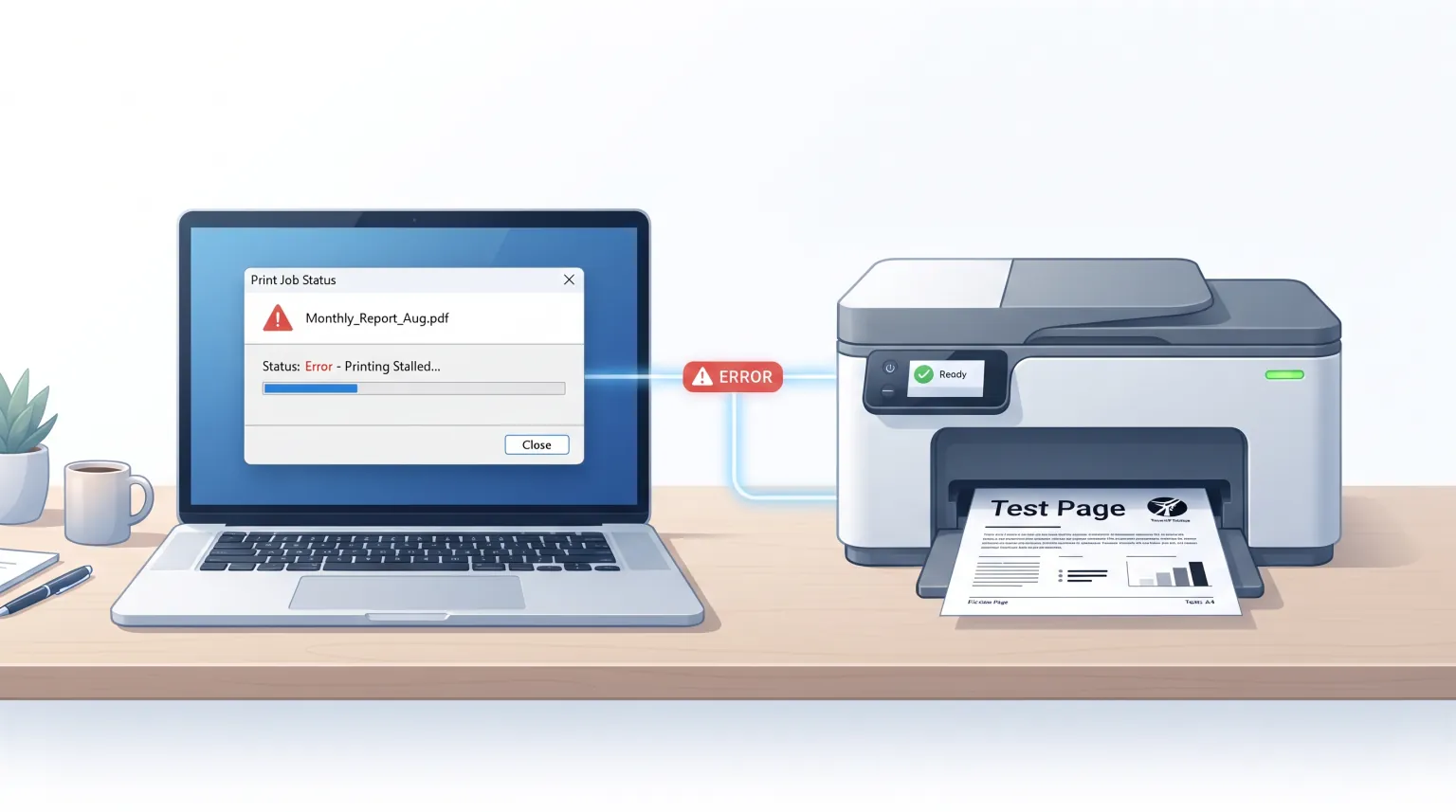
It's one of the more confusing printer symptoms: you print a test page from the printer's own menu and it comes out perfectly — sharp text, solid colors, no streaking. Then you try to print an actual document from your computer, and nothing happens, or it fails outright. If the printer clearly works, why won't it print your file?
The short answer: that difference in behavior is genuinely useful diagnostic information, not a coincidence. Here's why it happens and how to track down the actual cause.
Why This Symptom Points Away From Hardware
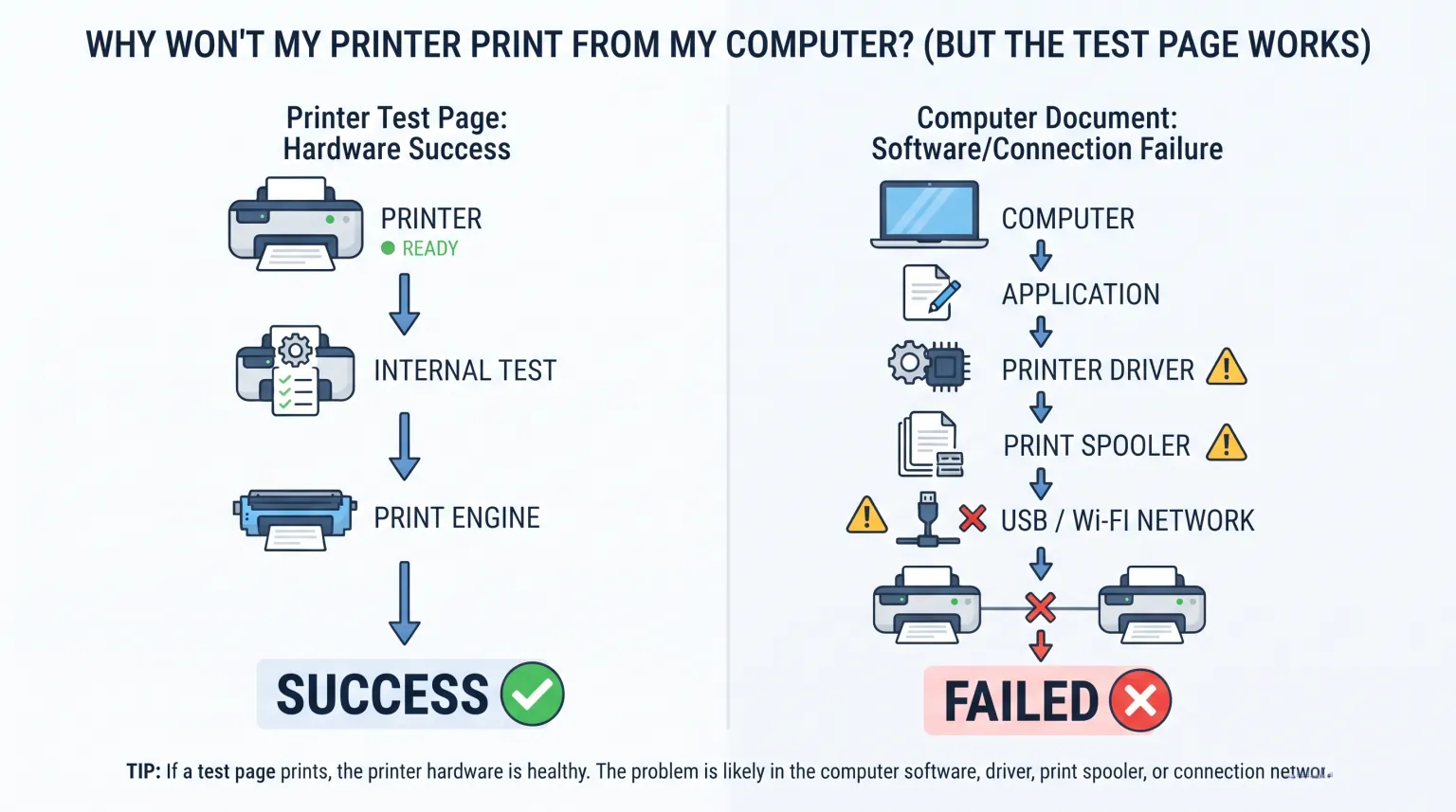
A printer's internal test/configuration page is generated entirely by the printer itself, from its own firmware, and sent straight to the print engine — it never touches your computer, the print spooler, a driver, or any application. A real document takes a completely different path: application → driver → operating system print spooler → printer.
If the short path works but the long path doesn't, the printer's engine, ink/toner, and connection are already confirmed fine. The fault has to be somewhere in that longer software chain.
The Most Likely Causes, in Order
1. A stuck print queue
A single failed or corrupted print job can jam the queue and silently block everything behind it. This is the single most common cause of this exact symptom.
- Windows: open Settings > Bluetooth & devices > Printers & scanners, select your printer, open the queue, and cancel any jobs showing an error or stuck "Printing" status.
- Mac: open System Settings > Printers & Scanners, click your printer, and clear anything sitting in the queue.
2. The print spooler service isn't running (Windows)
Windows print jobs are all handled by a background service called the Print Spooler. If that service has crashed or stopped, nothing you send from an application will ever reach the printer — even though the printer itself is completely fine.
- Press Win + R, type
services.msc, and press Enter - Find Print Spooler in the list, right-click it, and choose Restart
- If it's stopped and won't start, right-click → Properties and set Startup type to Automatic first
3. A corrupted or outdated driver
Drivers occasionally get corrupted by a bad update or a crashed print job. Removing and reinstalling the driver (rather than just updating it) clears out any damaged files that an update alone might not touch. Download the current driver directly from your printer brand's support site rather than relying on Windows Update to find the right one.
4. The wrong printer is set as default
If you have more than one printer or virtual "printer" installed (like Microsoft Print to PDF or a scanner's virtual driver), documents can silently route to the wrong one. Double-check your intended printer is actually set as the default before assuming it's broken.
5. An app-specific setting or file problem
If test pages print but only one particular application fails to print, the printer and driver are both fine — the issue is local to that app or that specific file. Try printing a simple test document (a blank Notepad or TextEdit file) first; if that prints successfully, the problem is isolated to the original application or document, not your print system.
| What you see | Likely cause | What to do |
|---|---|---|
| Nothing happens at all when you print | Stuck print queue or stopped spooler service | Clear the queue; restart the Print Spooler service |
| Print job appears then disappears/errors | Corrupted driver | Uninstall and reinstall the driver from the manufacturer's site |
| Nothing prints, but no error either | Wrong default printer selected | Check and reset your default printer |
| Only fails from one specific app | App or file-specific issue | Test with a simple file from a different app to confirm |
Frequently Asked Questions
Does this mean my printer definitely isn't broken?
Not with certainty, but it's a strong signal — a successful test page confirms the print engine, ink/toner, and the connection to the printer are all working. From there, the problem is almost always in the software path between your computer and the printer, not the printer hardware itself.
I restarted the spooler and cleared the queue, still nothing. What now?
Reinstall the printer driver next — remove the printer entirely from your list of devices, then add it again using a driver downloaded fresh from the manufacturer's site rather than the generic one Windows may have installed automatically.
Could this be a network issue instead?
Yes, if your printer is on Wi-Fi or a network connection — the test page is often generated locally by the printer's own menu, which doesn't need network access, while a real document has to reach the printer over that connection. If you're on a network printer, confirm it's still connected before troubleshooting the spooler or driver.