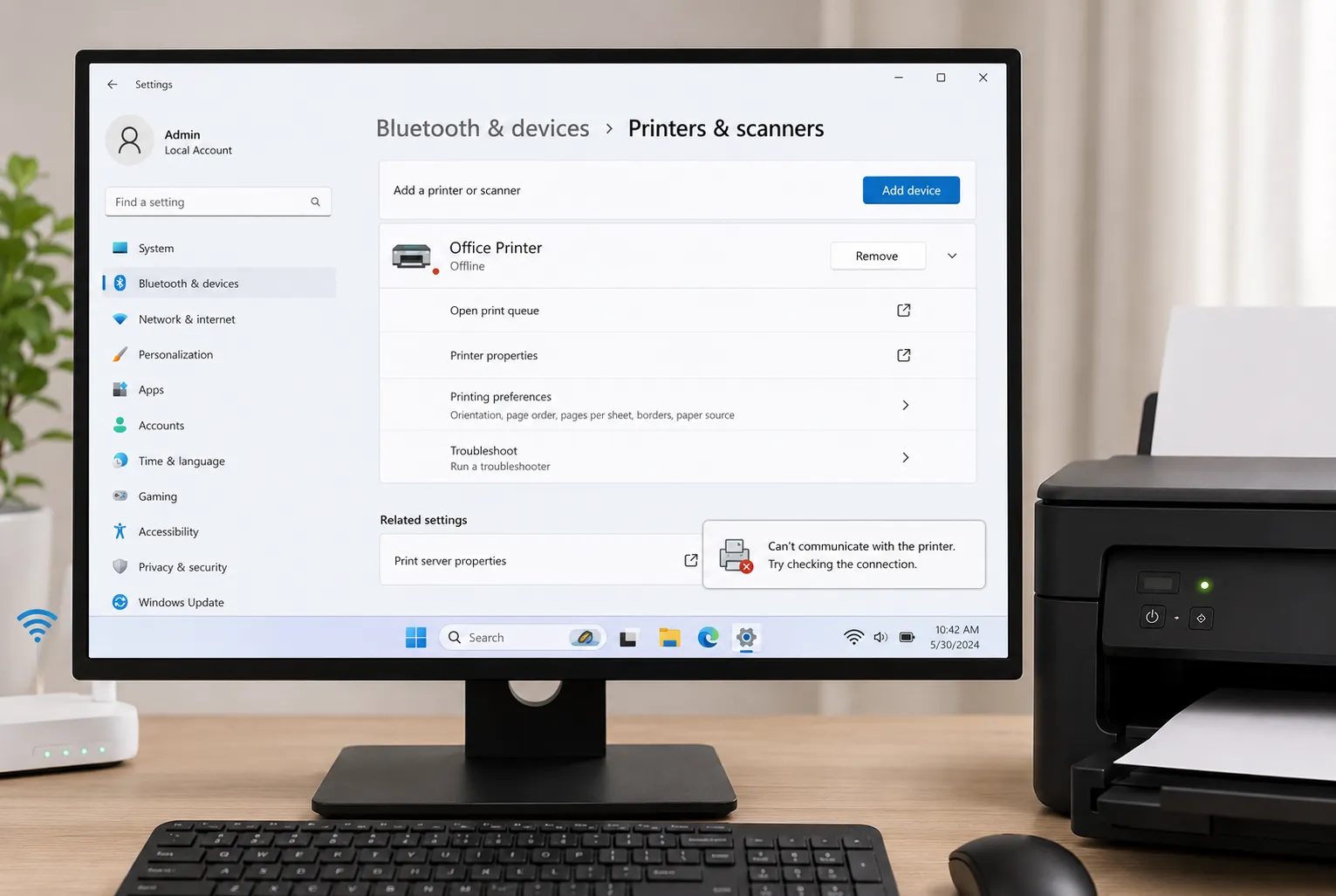
Your printer is plugged in, powered on, and sitting right next to your desk — and your computer still insists it's "offline." A printer offline message is one of the most common complaints there is, and the annoying part is that it usually has nothing to do with the printer actually being off. It's almost always a software or network hiccup between your computer and the printer, and most of the time you can fix it yourself in a few minutes.
This guide walks through why "offline" shows up even when everything looks fine, and how to fix it on both Windows and Mac — plus a few extra steps for Wi-Fi printers, which are the most common culprits.
Why does my printer say offline when it's connected?
Before jumping into fixes, it helps to know what's actually going on. "Offline" doesn't mean your printer is broken — it means your computer's print system has lost track of it. A few common causes:
- The wrong printer is set as default — if you have more than one printer listed, your computer may be trying to talk to one that's disconnected or turned off
- Sleep or power-saving mode — many printers appear "offline" simply because they've powered down to save energy and haven't woken up yet
- A stale network address — Wi-Fi and network printers get an IP address from your router, and if that address changes, your computer is still trying to reach the old one
- A stuck print queue — a failed job sitting in the queue can block everything behind it and make the printer look offline
- A loose cable or dropped Wi-Fi connection — the simplest cause, and worth ruling out first
- An outdated or corrupted driver — the software translating between your computer and printer can occasionally get out of sync after an update
How do I fix "printer offline" on Windows 11?
Work through these in order. Microsoft's own sequence starts with the automatic troubleshooter, and most people are fixed by the first few steps:
- Run the printer troubleshooter in Get Help. On Windows 11 it runs diagnostics and tries to fix most printer problems on its own.
- Restart the printer. Turn it off, unplug it, wait 30 seconds, then plug it back in and turn it on.
- Check the connection. For USB, reseat the cable at both ends. For Wi-Fi, make sure the printer and your PC are on the same network, using the printer's own menu to check.
- Set it as the default printer. Go to Start > Settings > Bluetooth & devices > Printers & scanners, select the printer, then Set as default. If that option is missing, turn off Let Windows manage my default printer first. Our guide to changing your default printer covers every platform.
- Clear the print queue. On the same printer page, select Open print queue, then the … menu and Cancel all. A stalled job can block the printer indefinitely.
- Restart the Print Spooler. Search for Services in the taskbar, right-click Print Spooler and choose Restart.
- Remove and re-add the printer. If nothing else works, remove it from Printers & scanners and add it again so Windows rebuilds the connection.
If the print queue window has a Printer menu, check that Use Printer Offline isn't ticked. It's a manual setting that's easy to switch on by accident.
Windows steps from Microsoft's offline printer troubleshooting guide, checked November 16, 2026.
How do I fix "printer offline" on a Mac?
- Check whether printing is paused. Open the printer's queue from its icon in the Dock. If the toolbar shows a Resume button, the printer is paused: click it. Resume any single paused job the same way, and delete a job that's blocking the queue.
- Check the connection. Reseat the USB cable, or confirm the printer is on the same Wi-Fi network as your Mac. If it doesn't appear in the list of available printers, it may be off or on a different network.
- Re-add the printer. In System Settings > Printers & Scanners, select the printer, click Options & Supplies, tick Use Generic Printer Features, then add the printer again to create a fresh queue.
- Reset the printing system (last resort). Control-click anywhere in the Printers list and choose Reset Printing System. This removes every printer, finished job and preset, so you'll have to add your printers again.
Mac steps from Apple's Solve printing problems on Mac, checked November 16, 2026.
Printer Offline Over Wi-Fi? Extra Things to Check
Network printers cause the most repeat "offline" issues, because their connection depends on more moving parts than a direct USB cable. If you've tried the steps above and it still won't stick:
- Restart your router. A surprising number of "randomly goes offline" complaints are actually router issues, not printer ones.
- Check the printer isn't on a separate Wi-Fi band. Some printers only support 2.4GHz, not 5GHz — if your router splits these into separate network names, make sure the printer joined the right one.
- Look for an IP address conflict. If your router reassigns IP addresses periodically, your computer may still be pointed at the printer's old address. Reconnecting the printer to Wi-Fi from its control panel usually resolves this.
- Move the printer closer to the router, at least temporarily, to rule out a weak signal as the cause.
If you restart both your router and printer, power them back on in order — router first, then wait about 30 seconds, then the printer. Powering the printer on before the router finishes booting is a common reason it grabs the wrong network settings and immediately drops back offline.
How do I know the fix worked?
Once your printer shows as online again, don't just take Windows' or macOS's word for it — send an actual test print. It's the fastest way to confirm the connection is genuinely stable and not about to drop again the moment you print something real. Our free printer test page works straight from your browser, so you don't need to dig back into printer settings to check.
Final thoughts
A printer offline error is almost always fixable from your desk: work through the Windows or Mac steps above, then send a test print to prove the connection is really back.
Frequently Asked Questions
Why does my printer keep going offline even after I fix it?
Recurring "offline" issues are usually caused by a Wi-Fi printer losing its IP address after your router reassigns addresses, or a printer dropping into sleep mode and not waking up cleanly. Restarting your router, and setting a static (reserved) IP for the printer in your router settings, usually stops it from happening repeatedly.
How do I know if it's the printer or my computer causing the offline status?
Try printing from a different device on the same network. If the printer works fine from another computer or phone, the problem is local to your original computer's settings, driver, or print queue — not the printer itself.
Does restarting the printer fix "offline" errors?
Often, yes — a full power cycle clears temporary glitches in the printer's network connection or internal memory. If it doesn't help within a minute or two of powering back on, move on to checking the default printer setting and print queue on your computer.
Why does my printer show offline only when I try to print, but online otherwise?
This usually points to a stuck print queue or spooler issue rather than a real connection problem — the printer status looks fine until a job actually needs to be sent. Clearing the print queue and restarting the Print Spooler service (Windows) or the printing system (Mac) usually resolves it.