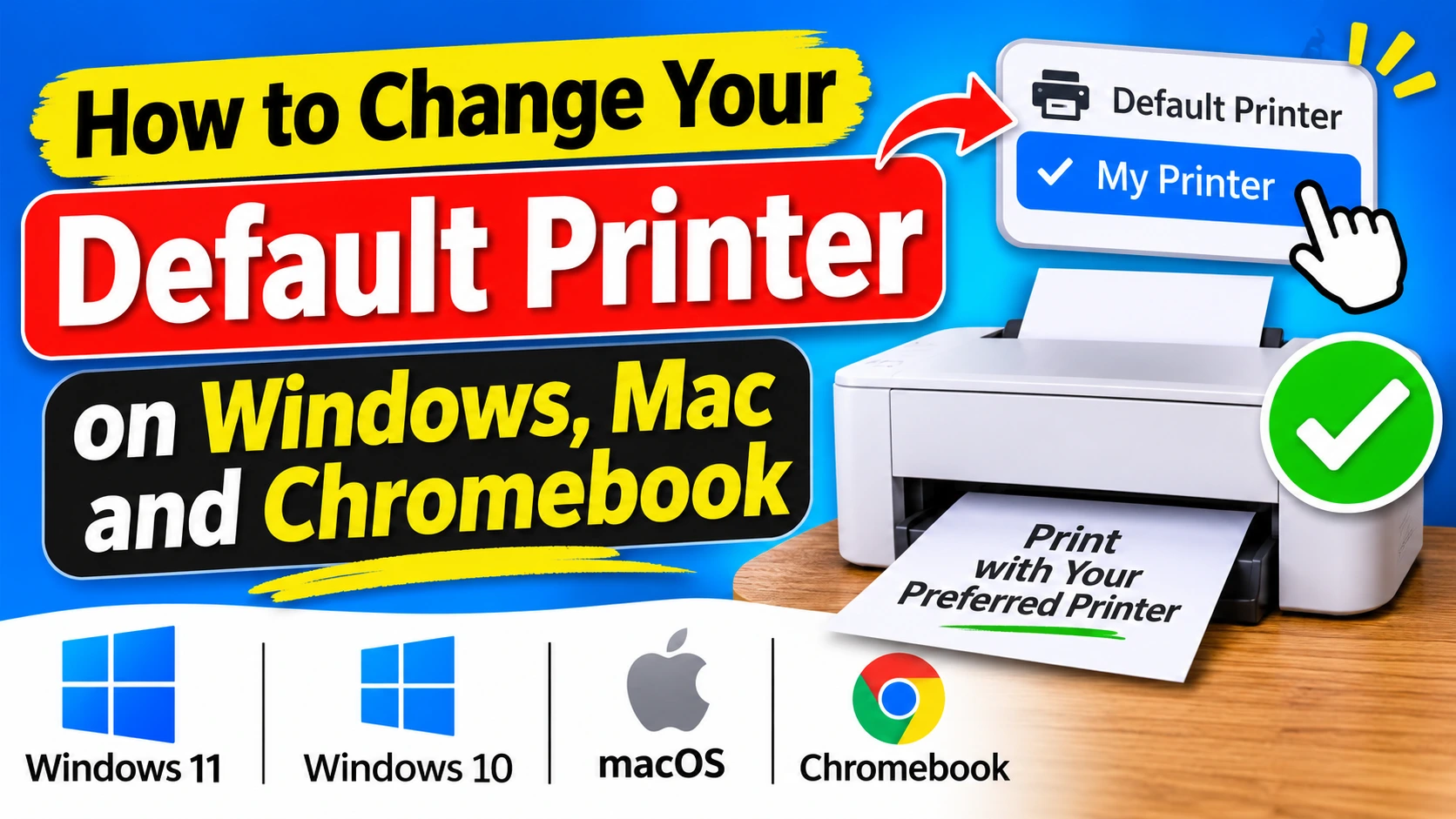
Your default printer is the one your computer picks automatically when you print. If documents keep going to the wrong printer, an old printer you no longer use, or a PDF printer, you can change your default printer in under a minute. On Windows there's one extra setting that quietly changes the default for you, and it's the reason many people's choice doesn't stick.
Below are the steps for Windows 11, Windows 10, macOS and Chromebooks, each checked against the official help pages linked at the end.
How do I change my default printer in Windows 11?
Open Start > Settings > Bluetooth & devices > Printers & scanners, turn off Let Windows manage my default printer, select your printer and choose Set as default. The printer's status changes to Default.
- Select Start > Settings > Bluetooth & devices > Printers & scanners.
- Under Printer preferences, turn Let Windows manage my default printer off.
- In the list of installed printers, select the printer you want.
- Select Set as default. Under the printer's name, Printer status changes to Default.
If your printer isn't in the list, it isn't installed yet: add it first from the same page.
How do I change my default printer in Windows 10?
- Select Start > Settings > Devices > Printers & scanners.
- Make sure Let Windows manage my default printer isn't selected.
- Select your printer, then Manage.
- Under Printer status, select Set as default.
Microsoft ended support for Windows 10 on October 14, 2025, so its settings won't change further, but these steps still work.
Why does Windows keep changing my default printer?
Because Let Windows manage my default printer is on. With it on, Windows makes the last printer you used the default, and on laptops the default can switch when you move to another location. Turn it off and your own choice stays put.
Leaving it on can be handy if you move between home and office printers every day. If you'd rather choose once, turn it off and set the default by hand as above.
How do I change my default printer on a Mac?
- Choose Apple menu > System Settings, then click Printers & Scanners in the sidebar (you may need to scroll down).
- Open the Default printer menu and choose your printer.
Choose Last Printer Used in the same menu if you want your Mac to default to whichever printer you used most recently.
How do I change my default printer on a Chromebook?
On a Chromebook, the printer you save to your profile becomes the default:
- Select the time at the bottom right, then Settings.
- Under Device, go to Printers and scanners > Print.
- Under Other available printers, select Save next to your printer. It moves to the top of Your saved printers.
How do I check the default printer is working?
Print a test page. On Windows or a Mac, the operating system's own test page goes to the printer you pick, so instead open the printer test page and press Ctrl+P (Cmd+P on a Mac): the print dialog should open with your new default already selected. If it still opens on the old printer, close the browser and try again, since some apps remember the last printer they used.
Still printing to the wrong place, or not printing at all? See test page prints but not documents and how to fix a printer that's offline, or answer a few questions in the printer troubleshooter.
Final thoughts
After you change your default printer, print one test page to confirm the job lands on the right machine. If Windows keeps switching it back, the Let Windows manage my default printer setting is almost always the reason.
Frequently Asked Questions
Why does my default printer keep changing in Windows?
The setting Let Windows manage my default printer is on, so Windows makes the last printer you used the default. On laptops it can also change the default when you move to a different location. Turn the setting off in Settings > Bluetooth & devices > Printers & scanners, then set your default printer by hand.
Why is there no Set as default button?
Because Windows is managing the default for you. Turn off Let Windows manage my default printer under Printer preferences in Printers & scanners, and the Set as default button appears next to each printer.
How do I make the last printer I used the default on a Mac?
In System Settings > Printers & Scanners, open the Default printer menu and choose Last Printer Used.
Does changing the default printer affect printing from my phone?
No. iPhones, Android phones and tablets choose a printer each time you print. The default printer setting only applies to the computer you change it on.