
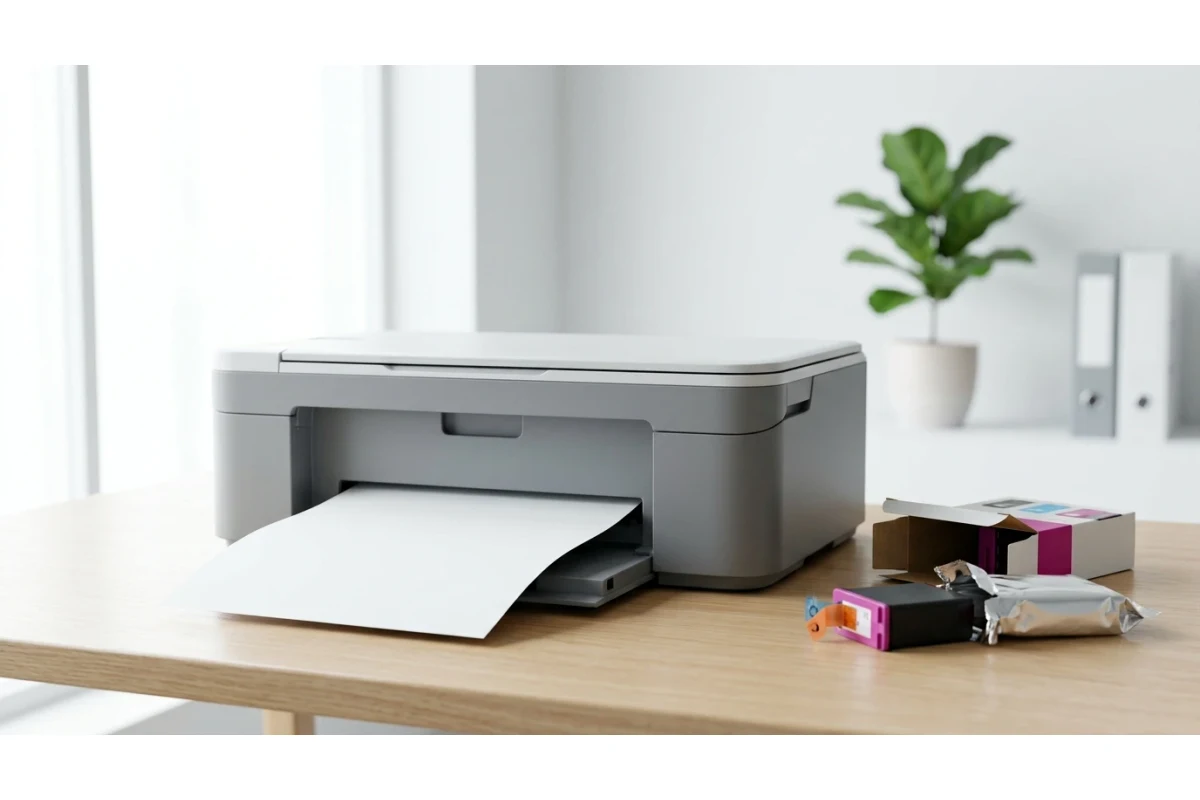
The paper feeds through normally. The printer makes all its usual noises. There's no error message. And the page that comes out has absolutely nothing on it. A blank page is oddly more confusing than a bad one — streaks or faded text at least point somewhere, but blank tells you nothing on its own. It actually narrows things down fast once you know what to check, and in what order.
Start Here: Rule Out the Obvious First
Before anything else, check two things that cause a genuinely surprising number of "blank page" reports:
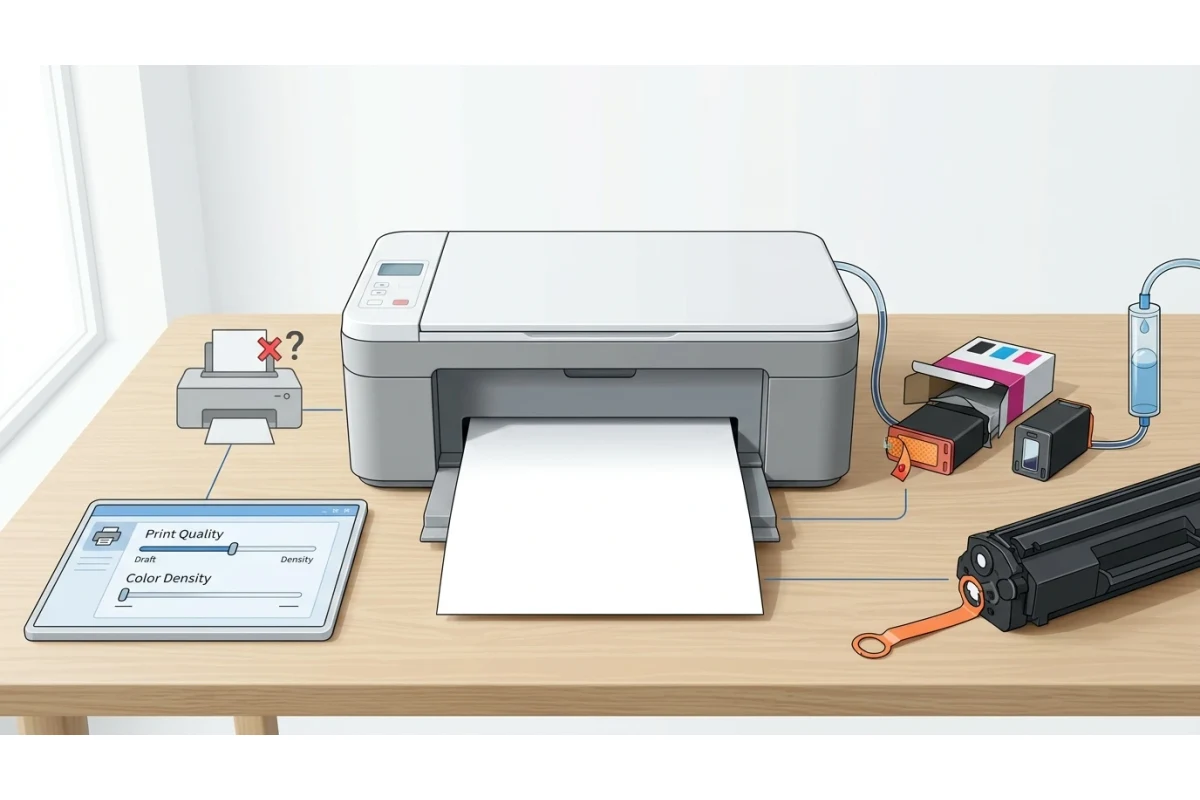
- Protective tape or film on a new cartridge. Brand-new ink cartridges ship with a small strip of tape sealing the print head or ink outlet. If it's still on, no ink can reach the page at all, no matter how new or full the cartridge is. Pull the cartridge and check.
- Paper loaded face-down (or face-up) incorrectly. Some printers print on the side facing up in the tray, others print on the side facing down — it varies by model. If you just refilled the tray, flip the stack and try again before assuming anything's actually broken.
If That's Not It: The Real Causes
1. An empty cartridge the printer hasn't flagged as empty
Refilled or third-party cartridges are the most common source of this, because their ink-level chip doesn't always report accurately to the printer. The printer thinks there's ink, runs the print head across the page exactly as normal, and nothing comes out because there's genuinely nothing left to dispense. Pull the cartridge and check it by weight or by looking through the ink window if it has one — a cartridge that feels suspiciously light is your answer.
2. An air bubble in the ink line
This shows up most after a printer's been shipped, moved, or sat unused for a long stretch. An air pocket can get trapped in the line between the cartridge and the print head, physically blocking ink from reaching the nozzles even though the cartridge itself is full. Running your printer's cleaning cycle two or three times from its maintenance menu usually clears it — this pushes ink (and the trapped air) through the line and out the nozzles.
3. The wrong printer received the job
If you have more than one printer installed — including virtual ones like "Microsoft Print to PDF," a scanner's driver, or an old printer you no longer own but never removed — a job can silently route to the wrong device. Sometimes that device still "prints" in the sense that a page physically feeds through a connected printer, but the content itself was rendered for, or intercepted by, something else entirely. Double-check your default printer before ruling out a hardware cause.
4. Laser printers: a drum protective cover left in place
New laser toner cartridges often ship with an orange or colored plastic strip protecting the photosensitive drum. If it isn't fully removed during setup, the drum can't transfer toner onto the page at all, and you'll get a blank sheet that feels otherwise completely normal. This is easy to miss because the strip is sometimes tucked along the edge rather than obviously blocking the cartridge.
5. Print density or quality set to the lowest possible setting
A corrupted print profile, a driver reset, or a setting changed by a previous job can occasionally leave density or quality set so low that output is technically present but invisible to the eye. This is rarer than the causes above, but worth checking if everything else comes back clean — look for a "print density," "darkness," or "quality" slider in your printer's driver settings and confirm it isn't sitting at its minimum.
| What you notice | Likely cause |
|---|---|
| Brand-new cartridge, printer is otherwise new too | Protective tape still sealing the cartridge |
| Just refilled the paper tray | Paper loaded on the wrong side |
| Refilled or third-party cartridge, ink light isn't on | Cartridge is actually empty; chip isn't reporting it |
| Printer recently moved, shipped, or unused for weeks | Air bubble trapped in the ink line |
| Multiple printers or virtual printers installed | Job routed to the wrong device |
| New laser toner cartridge just installed | Drum protective strip still in place |
If your test page comes out with some ink on it — just faded, streaky, or missing one color rather than fully blank — that's a different and more common issue with its own fixes; see our print quality problems guide. And if the test page itself prints fine but real documents come out blank or don't print at all, that points to a software/spooler issue rather than any of the causes above — covered in our test page prints but documents don't guide.
Frequently Asked Questions
Is a blank page always an ink or toner problem?
Not always. New cartridges shipping with protective tape or a drum cover still attached is one of the single most common causes, and it has nothing to do with ink or toner levels. Check for that before assuming you need a replacement cartridge.
How do I know if there's an air bubble in the ink line?
You can't see it directly, but it's a strong suspect if the printer was recently moved, shipped, or left unused for a few weeks and the cartridge is otherwise confirmed full. Run two or three cleaning cycles from the printer's maintenance menu — this typically clears it within a few attempts.
Should I try a full color test page or black and white first?
Try color first if your printer has it — a blank page on a full-color test tells you more at once, since you'll immediately see whether it's every color affected or just one. Follow up with a black and white test if you want to isolate whether the black cartridge specifically is the problem.