
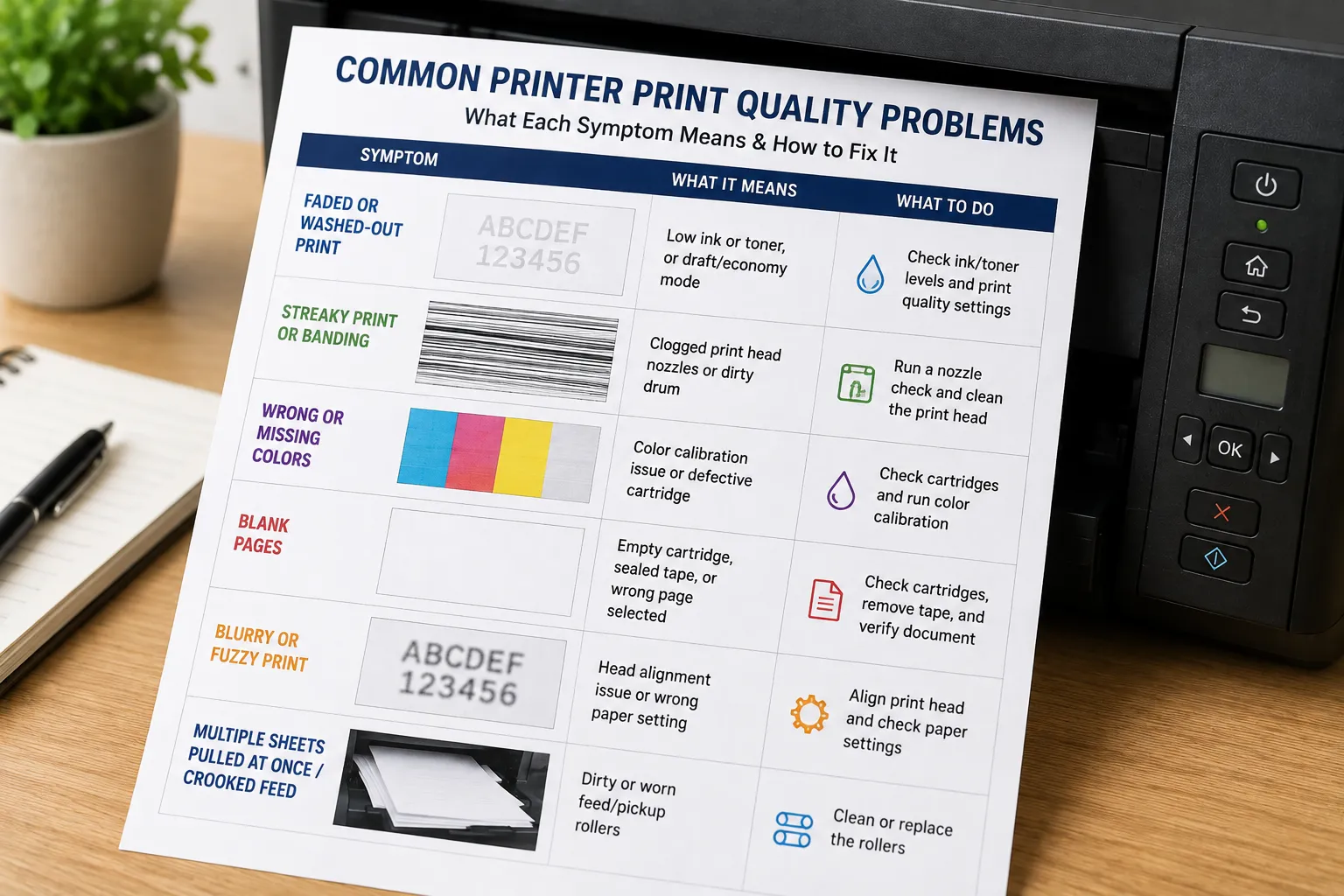
"Bad print quality" isn't one problem — it's a symptom, and different symptoms point to completely different causes. Faded print, streaky print, banding, blank pages, and blurry text each have their own specific fix, and treating them all the same way (running a generic cleaning cycle and hoping) wastes ink without actually solving anything.
Here's what each specific symptom means and the fastest way to fix it.
| What you're seeing | Most likely cause | Jump to |
|---|---|---|
| Text or colors look washed out / pale | Low ink or toner, or draft/economy mode | Faded or washed-out print |
| Random streaks or thin white lines | Clogged print head nozzles | Streaky print or banding |
| Regular horizontal stripes at even intervals | Dirty drum (laser) or nozzle clog (inkjet) | Streaky print or banding |
| Colors look wrong, tinted, or a block is missing | Color calibration or a dead cartridge | Wrong or missing colors |
| Page comes out completely blank | Empty cartridge, sealed tape, or wrong page selected | Blank pages |
| Text or images look fuzzy, doubled, or out of focus | Head alignment or wrong paper setting | Blurry or fuzzy print |
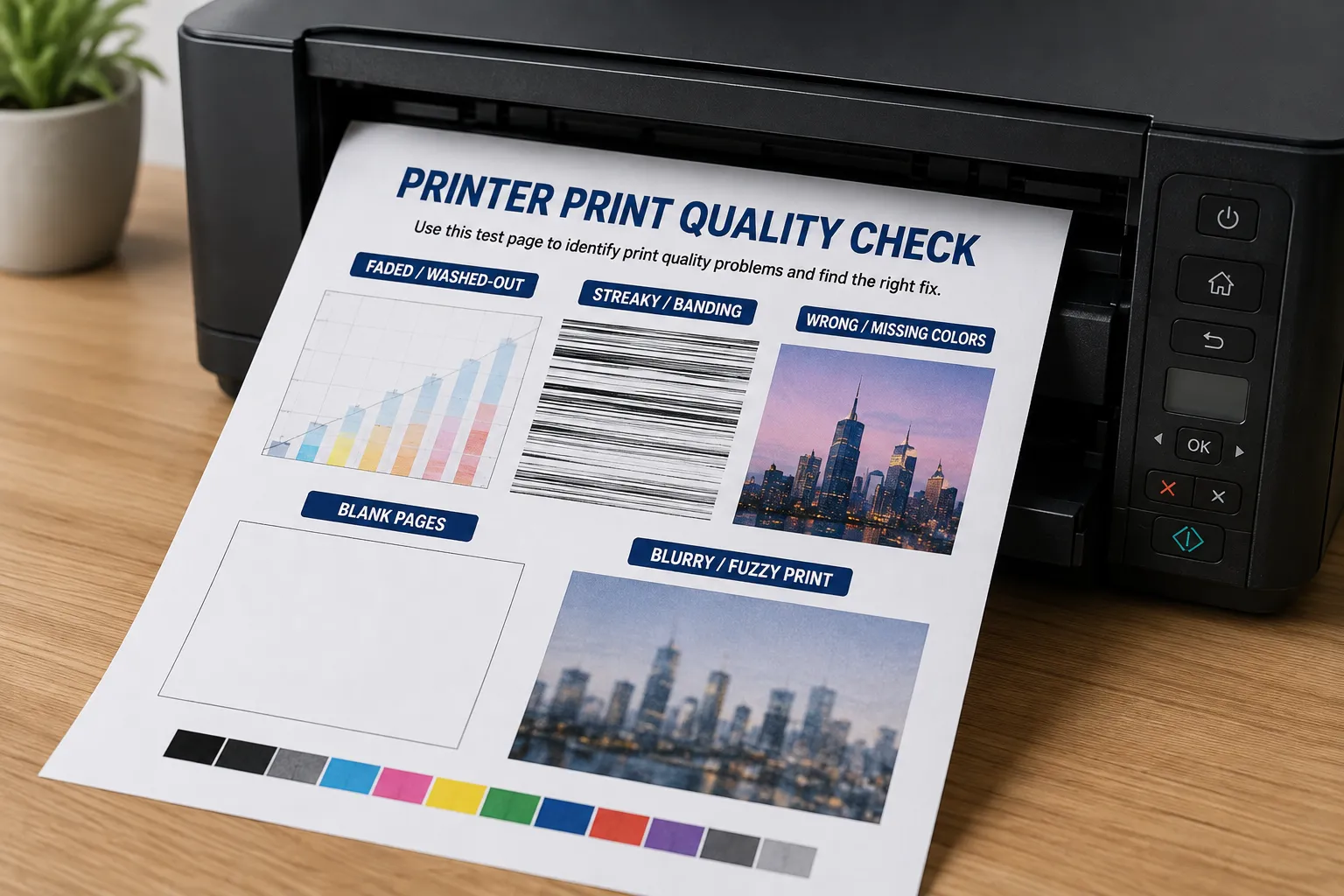
If you haven't already, running a printer test page first is the fastest way to confirm which of these you're actually dealing with, since it isolates the printer from whatever document or app you were originally trying to print.
Faded or Washed-Out Print
Faded print almost always comes down to one of three things, roughly in order of likelihood:
- Low ink or toner. The obvious one, but worth checking first — most printers show an estimated level in their software or control panel.
- Draft, economy, or "ink saver" mode. Left on from a previous print job, this deliberately lays down less ink to save cost, and it's easy to forget it's still enabled.
- A near-empty cartridge reporting itself as fuller than it is. Cartridge gauges are estimates, not precise measurements, and can lag behind actual usage, especially near empty.
Check your print settings first (look for "Print Quality," "Draft Mode," or "Economy Mode" in the print dialog) before assuming it's a cartridge problem — it's the most common cause and costs nothing to rule out.
If toner (not ink) is fading unevenly across the page rather than uniformly, gently rock the toner cartridge side to side to redistribute settled powder before assuming it's empty — this alone fixes a surprising number of "low toner" false alarms.
Streaky Print or Banding
Streaky output and regular banding are usually a nozzle or drum issue rather than an ink-level issue — the difference is in the pattern:
- Random, irregular white streaks through solid color: almost always clogged print head nozzles from a period of disuse. This is the single most common print quality complaint.
- Regular horizontal stripes at consistent intervals: on a laser printer, this points to a dirty or damaged drum; on an inkjet, it's usually still a nozzle issue, just a more severe one.
The fastest way to tell exactly which nozzles are affected (and confirm whether a cleaning cycle actually cleared it) is to run and read a nozzle check pattern — it turns "streaky prints" into a precise map of which nozzles need attention, instead of guessing.
Wrong or Missing Colors
If colors look tinted, shifted, or a color is missing outright, that's a distinct problem from fading or streaking — it's either a calibration mismatch between your screen and printer, or a specific cartridge issue. A completely missing color block on a test page usually means that cartridge is empty, expired, or seated wrong; a subtle tint across everything (a pink or green cast on what should be neutral gray, for example) is almost always a calibration issue rather than a hardware fault.
This one gets its own full guide because there's a real diagnostic process involved — see our printer color calibration guide for how to tell the two apart and fix each one.
Blank Pages
A page that comes out completely blank, with no error message, is more common than it sounds and rarely means the printer is broken. Check these in order:
- Protective tape or seal left on a new cartridge. Every new ink cartridge ships with a small strip of tape over the print head contacts or ink outlet — if it's still there, nothing can print. This is the single most common cause of a brand-new printer producing blank pages.
- The wrong page or a blank page in the source document. Sounds obvious, but double-check the actual document isn't the problem before troubleshooting the printer.
- An empty or undetected cartridge. Some printers will still attempt the print job even when a cartridge is fully empty, rather than blocking it with an error.
- A refilled or third-party cartridge with a chip the printer doesn't recognize. Some printers silently skip printing from a cartridge they can't verify, instead of showing a clear error.
- Corrupted print driver or a stuck spooler job. Especially if it just started happening after a Windows update — see our test page error codes guide if you're also seeing an actual error message rather than just blank output.
Blurry or Fuzzy Print
Blurry text or images, especially if it looks doubled or "ghosted," is almost always one of two things:
- Print head misalignment. The print head fires slightly off-target, which is invisible on solid colors but very obvious on fine text. Your printer's alignment tool (not a cleaning cycle) is the fix — running a nozzle check first will confirm whether it's alignment or a clog, since the two look different on the pattern.
- Wrong paper type selected. Printing photo-quality settings on plain paper (or vice versa) causes ink to spread slightly on contact, which reads as blurriness even though nothing is mechanically wrong. Make sure the paper type selected in your print dialog actually matches what's loaded in the tray.
Less commonly, smudging (not true blurriness) happens when pages are handled before the ink has fully dried — more of an issue with high-coverage color prints on humid days than with normal text documents.
When to Stop Troubleshooting and Replace Something
Most print quality issues clear up with the fixes above. A few signs it's time to replace rather than keep troubleshooting:
- The same nozzle gaps persist after 3+ cleaning cycles across multiple sessions — the print head itself may be failing, not just clogged
- A cartridge reports empty repeatedly right after being replaced — likely a bad cartridge, not a printer fault
- Streaking or banding only appears on one specific color, consistently, regardless of cartridge replacement — can point to a failing print head channel for that color specifically
Frequently Asked Questions
Why is my printer printing faded even with a full cartridge?
Check your print quality settings first — draft or economy mode deliberately reduces ink usage and produces lighter output even with a full cartridge. If quality settings are already on normal or best, a partially clogged nozzle is the next most likely cause.
Why does my printer print blank pages after I replace the cartridge?
The most common cause is protective tape still covering the print head contacts or ink outlet on the new cartridge — remove it fully and reseat the cartridge. If that's not it, the printer may not be recognizing the new cartridge's chip, which is more common with refilled or third-party cartridges.
What's the difference between streaky print and banding?
Streaking is irregular — random white gaps through a color block, usually from scattered clogged nozzles. Banding is regular — evenly spaced stripes at consistent intervals, more often pointing to a dirty laser drum or a more widespread nozzle issue.
Can bad paper cause print quality problems?
Yes — paper that doesn't match your print settings (photo paper set to plain, or vice versa) causes ink to spread or sit incorrectly, which can look like blurriness or oversaturation even when the printer itself is working correctly.