Most HP owners handle streaky prints the same way: run the clean cycle, then run it again, and keep going until something changes or the ink runs out. It's an expensive habit. Every cleaning pushes ink through the nozzles, and plenty of the problems people try to clean away aren't clogs at all.
A better order is to print a proper color test, read what it's telling you, and only clean when the page says you should. It takes about ten minutes and usually saves a cartridge's worth of ink.
Step 1: Print a Test That Actually Uses Color
Skip the Windows "print a test page" button. On most HP drivers it prints a few lines of text and a small logo. That proves the printer is connected, but it tells you almost nothing about cyan, magenta, or yellow.
You want solid blocks of every ink. Two easy ways to get them:
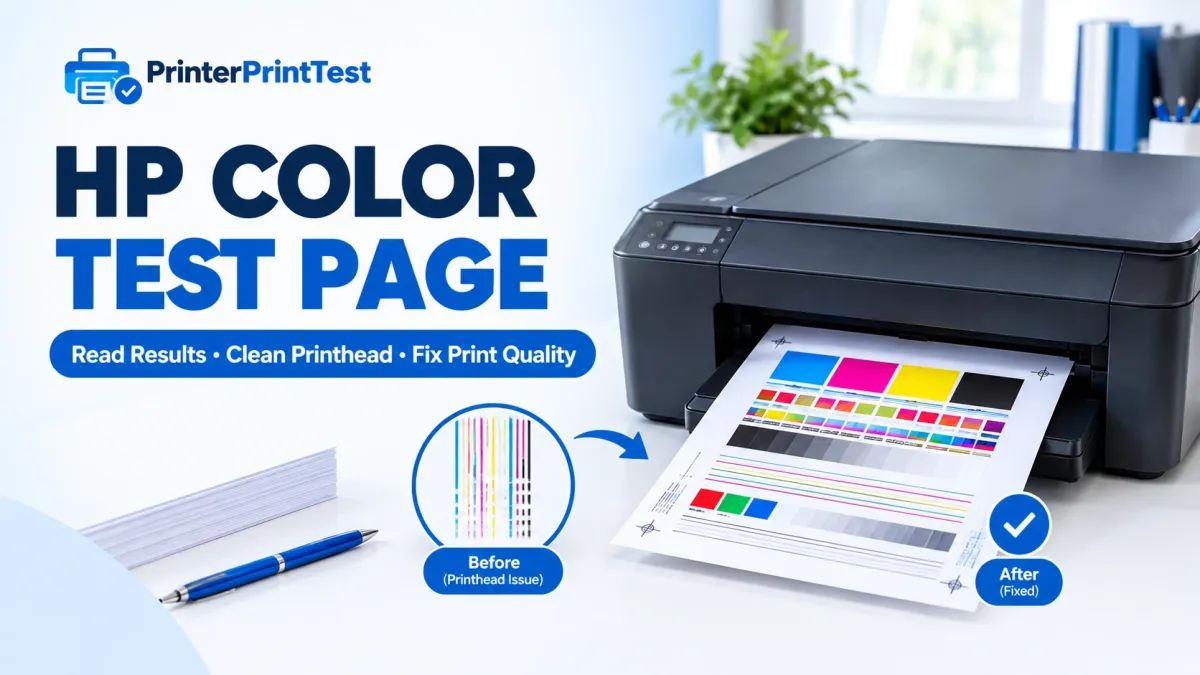
- Print our color printer test page from your browser. It has CMYK and RGB blocks, a gradient, and skin tones on one sheet.
- Print HP's own Print Quality Report. In the HP Smart app, click your printer and open Printer Reports. Button-only models have their own shortcut. On an Ink Tank 315 or 415, for instance, you hold Start Color Copy for 3 seconds. Our HP self-test page guide lists the buttons by model.
Three settings in the print dialog can make a healthy printer look broken, so check them first. Make sure color is on, because some HP drivers default to grayscale to save ink. Match the paper type to what's actually loaded. And don't print in Draft, since it deliberately uses less ink.
Keep this first page. You'll want it for comparison later.
Step 2: Work Out What the Page Is Saying
| What you see | Most likely cause | Clean the printhead? |
|---|---|---|
| Thin white lines running through blocks | Clogged nozzles | Yes |
| One color missing entirely | Empty ink, tape left on a new cartridge, or air in the line on tank models | Only after checking ink and tape |
| Everything evenly pale | Draft mode, wrong paper setting, or low ink | No |
| Greens look bluish, reds look orange | One of cyan, magenta, or yellow under-printing | Probably. Find the weak block first |
| Solid blocks, but edges look doubled | Misalignment | No. Run Align Printhead and print an alignment test |
What kind of HP you have changes how to read the page. DeskJet, ENVY, and most OfficeJet models use a black cartridge plus a tri-color cartridge, with all three colors sharing one cartridge and its built-in printhead. If yellow alone has gone, the whole tri-color cartridge is the problem, even though cyan and magenta still look fine.
Ink Tank and Smart Tank models (the 315, 415, 515 and similar) work differently. Ink runs through tubes to two separate printheads that you can replace. A color that's missing on a brand-new tank printer is almost always air in the line, or the orange tape and plugs still on the printheads from setup. These printers also can't sense how much ink is left in the tanks, so look at the tank windows yourself.
Laser printers fail in their own ways, with fading, banding, and repeating marks rather than clogs. See how ink and toner test pages differ if that's you.
Step 3: Rule Out Low Ink Before You Clean
A block that's evenly faint, rather than broken up by streaks, is usually just low ink. Cleaning won't help, and it uses up the little ink you have left. Check the levels in HP Smart or on the printer itself. HP's own print quality troubleshooting starts the same way: top up or replace anything that's low before doing anything else.
Step 4: Run the Clean Printhead Cycle
With plain paper loaded, open HP Smart, click the printer, and go to Tools → Print Quality Tools → Clean Printhead. Depending on the model it may just say Clean, or sit under Alignment & Maintenance. The printer runs the cycle and prints a page when it's done.
Touchscreen models have the same option under Setup → Tools (or Printer Maintenance). On Windows with HP's full driver installed, HP Printer Assistant has it under Print & Scan → Maintain Your Printer.
Step 5: Compare, Then Decide
Put the before and after pages side by side.
- Streaks gone: you're done. Don't clean again "just to be sure."
- Better, but not perfect: the clog is responding. HP Smart will offer a second and third cleaning level, which go deeper.
- No change after two or three rounds: stop. More cleaning won't fix it (see below).
- Lines doubled or jagged but solid: that's alignment, so switch to the Align Printhead tool.
If the printhead is badly clogged, HP recommends waiting at least 30 minutes before cleaning again. It sounds like a stall, but the wait lets fresh ink soften what's dried in the nozzles, and the next cycle tends to work far better for it.
When More Cleaning Won't Help
If three cleaning levels changed nothing, the printhead is probably finished. On a cartridge printer, that means a new cartridge, since the printhead comes with it. On a tank printer, you can buy and replace the printhead on its own. HP also notes that its cleaning steps may not fix quality issues with non-HP or refilled ink.
There are two other cases where cleaning is the wrong fix. If the test page looks perfect but your documents don't, the issue is software, not hardware. See printer prints test page but not documents. And if every block on the page is solid but photos still don't match your screen, the printer is fine. Screens mix light and printers mix ink, which our CMYK vs RGB explainer goes into.
Stopping It From Coming Back
Inkjet nozzles clog when ink sits still and dries. One color page a week keeps every nozzle in use and costs less ink than a single deep clean. Also get in the habit of switching the printer off with its own power button rather than at the wall, so the printhead parks under its cap.
Frequently Asked Questions
How do I print a color test page on an HP printer?
Print a browser-based color test sheet with the HP driver set to color, the correct paper type, and Normal quality. Or open the HP Smart app, select your printer, and print the Print Quality Report from Printer Reports.
Why does my HP color test print in black and white?
The driver is most likely set to print in grayscale, which some HP drivers do by default to save ink. Change it in the print dialog or Printing Preferences. Some HP printers also fall back to black only when a color cartridge is empty or missing.
How many times should I clean my HP printhead?
Clean once, then print a test to check. If it improved, run the next cleaning level. If two or three rounds make no difference at all, stop, because the cartridge or printhead likely needs replacing and further cleaning just wastes ink.
What is an HP ink test?
It's a printed page of solid color blocks and lines, such as HP's Print Quality Report or a browser test sheet, that shows whether each ink is printing evenly. Gaps, streaks, or a missing block point you to the color with the problem.