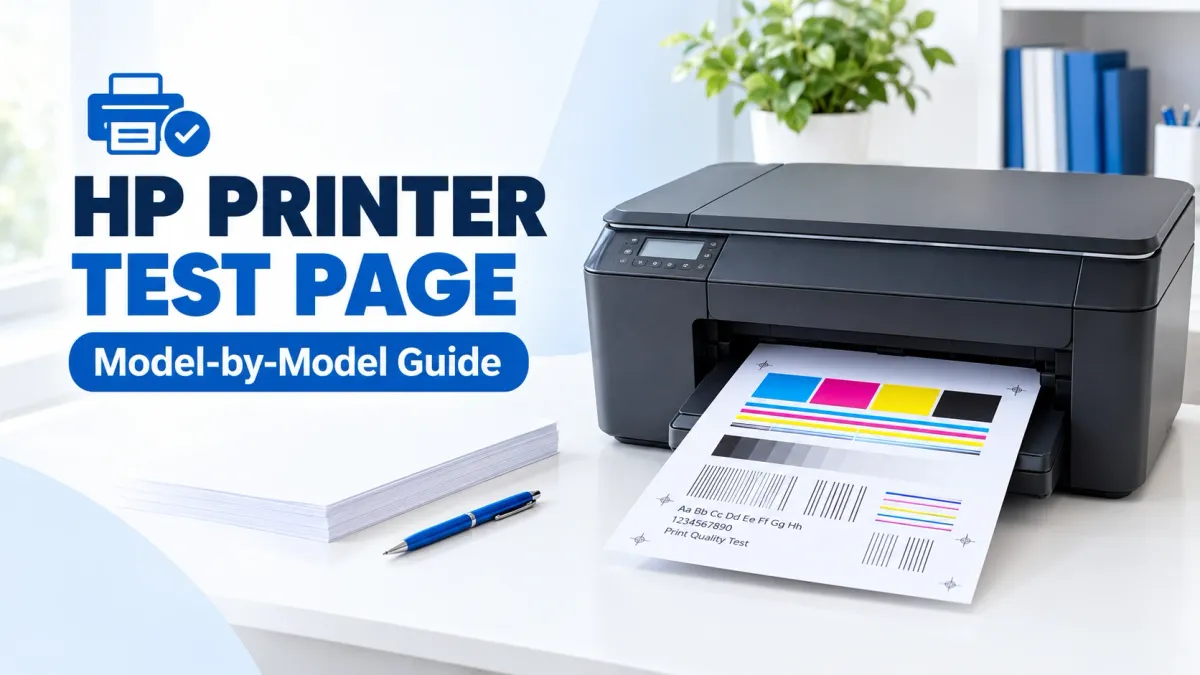
Every HP printer has a few reports hidden in its firmware, and most owners never find them. Some live in a menu. Others only come out if you hold the right button for the right number of seconds, and HP changes those buttons from one series to the next. Hold the wrong one on certain DeskJets and you'll start a maintenance routine you didn't ask for.
This guide covers the reports built into HP printers. To print a full color and grayscale test sheet on an HP printer from your browser, use the HP printer test page.
This guide covers what each HP report is good for and how to print it on the models people ask about most. If you just want a printable page to check your output, our HP printer test page works from any browser with no buttons involved.
Four Reports, Four Different Jobs
| Report | What's on it | Print it when |
|---|---|---|
| Print Quality Diagnostic page | Solid color blocks, lines, and alignment patterns | Prints are streaky, faded, or missing a color |
| Printer Status Report | Model, serial, firmware, ink levels, page count, error log | HP support asks for it, or you want the page count |
| Network Configuration page | IP address, Wi-Fi name, signal strength | The printer shows offline or keeps dropping Wi-Fi |
| Demo page | A sample graphic | Almost never. It shows off the printer instead of exposing faults |
When you're troubleshooting print quality, skip the demo page. A busy photo hides a clogged nozzle easily. The same clog shows up as a clean white gap across a solid block on the diagnostic page.
Touchscreen Models: Use the Reports Menu
If your HP has a touchscreen (most OfficeJet Pro models, the larger ENVYs, some Smart Tanks, and LaserJet Pro MFPs), you don't need any button tricks. Open Setup or the gear icon, then Reports. On a few models it's under Tools instead. Every report your printer supports is listed there.
HP Ink Tank 315 and Wireless 415
The Ink Tank 310 series (315, 316, 318, 319) and 410 series (415, 416, 418, 419) use the same panel, so the steps are identical. Put plain paper in the tray first.
- Diagnostic page: hold Start Color Copy for 3 seconds.
- Printer Status Report: hold Cancel for 3 seconds.
The 415 can also print a wireless network test, which you'll find under Printer Reports in the HP Smart app. One catch with the 315: it's USB-only, so HP Smart has to run on the computer it's plugged into. Your phone won't find it.
HP Smart Tank 515
The Smart Tank 500 series uses a different combination from the Ink Tanks, which trips up a lot of people who have owned both.
- Diagnostic page: hold Color Copy and Resume together for 3 seconds.
- Information page (status, network, and ink summary): a single press of the Information button.
HP DeskJet and ENVY Without a Screen
This is where HP is least consistent. On the DeskJet 2600 series (2620, 2630, 2655 and others), holding Cancel for 3 seconds prints a status report. Many other button-only models print a test page if you hold Power, tap Cancel, then let go of Cancel before Power.
Look up HP's "printing self-test pages" document for your exact model before you start experimenting, though. Some DeskJets use long button sequences for cleaning and reset routines, and you don't want to set one off by accident. For screenless ENVYs, the HP Smart app is the easier path: tap the printer, then Printer Reports.
The DeskJet 2135 is a special case
The 2135 (2130 series) has no screen and no wireless, and we couldn't confirm a control-panel combination for a test page that HP documents. Work from the PC it's plugged into instead. HP Smart or HP Printer Assistant on that machine gives you the quality report, cartridge cleaning, and alignment.
If a patterned page came out on its own right after you swapped a cartridge, that was the 2135's alignment page. Lay it face down on the scanner glass and press either copy button, and the printer finishes the alignment.
HP LaserJet
LaserJets call their self-test a Configuration Report. Besides the settings and IP address, it shows supplies status and the page count. Getting a clean one out also proves the engine, toner, and paper path all work.
| Model | Steps |
|---|---|
| LaserJet Pro M15, M16, M17 | Hold Resume/Cancel until the Ready light blinks, then let go |
| LaserJet Pro MFP M28–M31 | Hold Start Copy until the Ready light blinks, then let go. Wireless models add a network summary |
| Models with a display | Setup (or Menu) → Reports → Configuration Report. Older text-display models list it under Information |
| Older single-"Go"-button models | Usually hold Go until the Ready light blinks, but check the manual, because it varies |
Bigger LaserJet Pro and Enterprise machines often have a separate Print Quality Page too. On a color LaserJet it prints one band per toner, which makes it the faster way to find which cartridge is causing a streak.
No Buttons Working? Two Fallbacks
The HP Smart app (free on Windows, Mac, iOS, and Android) can print the same reports on nearly any current HP. Click the printer, open Printer Reports, and pick one. Networked printers also have a built-in web page: type the printer's IP address into a browser on the same network and look under Tools for a reports section.
For the plain Windows or Mac test page, see our general guide to printing a test page. If you have a page in hand and it looks wrong, our guide to the HP color test page and printhead cleaning covers what each defect means.
Frequently Asked Questions
What's the difference between an HP diagnostic page and a configuration page?
The diagnostic page is a pattern of color blocks and lines for checking ink output. The configuration page is a text report with settings like the IP address, Wi-Fi network, and firmware version. One is for print quality problems, the other is for connection problems.
Can I print an HP self-test page from my phone?
Yes, if the printer is on Wi-Fi. Open the HP Smart app, tap your printer, and go to Printer Reports. USB-only models such as the Ink Tank 315 and DeskJet 2135 can't be reached from a phone, so use the computer they're connected to.
Why won't my HP printer print a self-test page?
Check for empty paper trays, an open ink or cartridge door, or a blinking error light that needs clearing first. If all of that looks fine, you may be using a button combination from a different HP series, so try printing the report from the HP Smart app instead.
What is the HP demo page for?
It's a sample printout that shows what the printer can produce. It confirms the printer prints, but it isn't designed to reveal defects, so print the diagnostic page instead when something looks wrong.