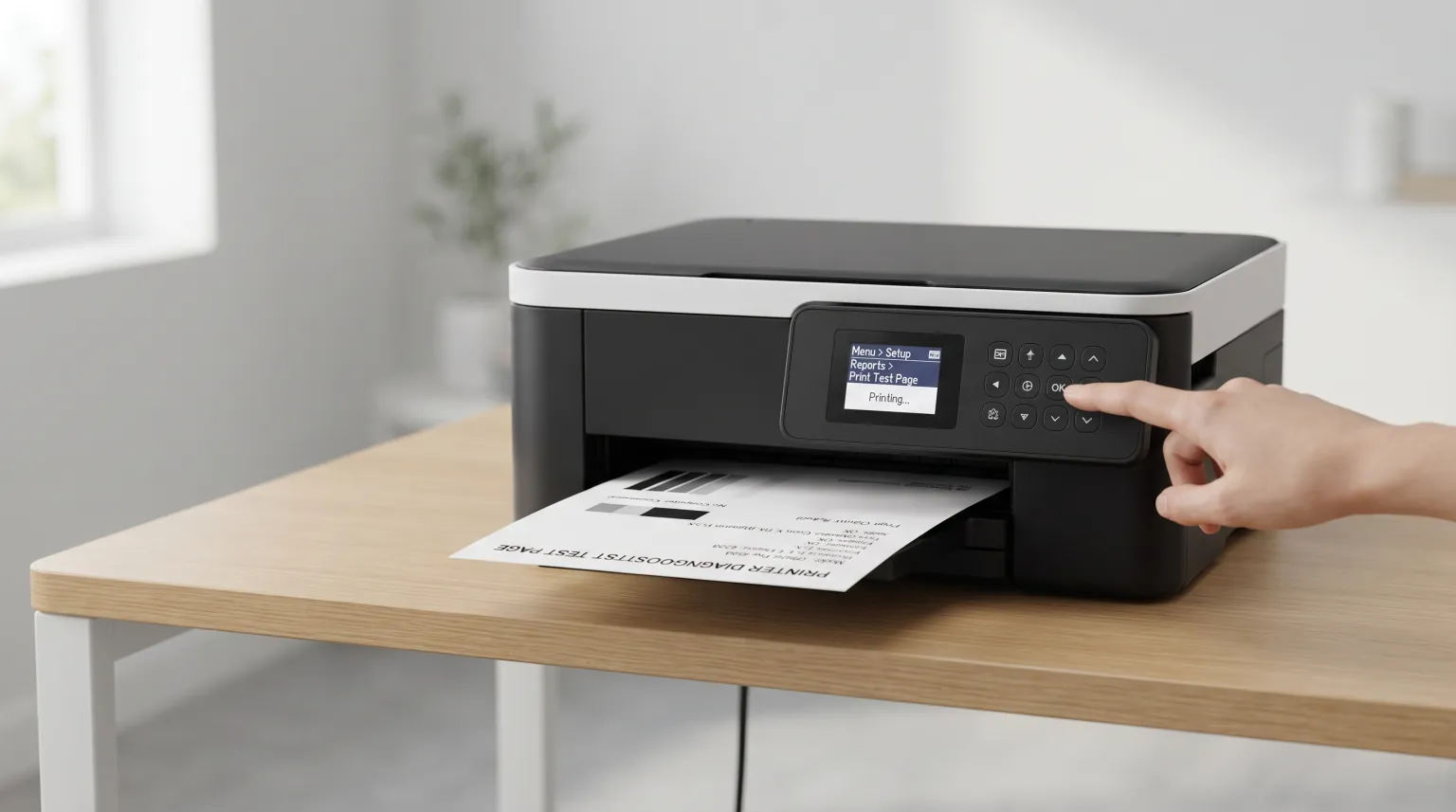
Every printer, no matter how basic, can print some kind of self-test or configuration page directly from its own control panel — no computer, cable, or Wi-Fi connection required. It's built into the hardware itself, which makes it the fastest way to answer one specific question: is the printer itself working, or is the problem somewhere between it and your computer?
If a document won't print, printing this way first tells you immediately whether to keep troubleshooting your computer's driver and connection, or whether the printer hardware itself needs attention.
Why Print This Way at All
A computer-sent print job depends on a whole chain of things working correctly: your app, the print driver, the operating system's spooler, and the connection (USB, Wi-Fi, or network) to the printer. A control-panel self-test skips all of that — it comes straight from the printer's own firmware and memory. If it prints cleanly, you've confirmed the print engine, ink or toner, and paper path are all fine, and can rule out hardware as the cause of whatever else is going wrong.
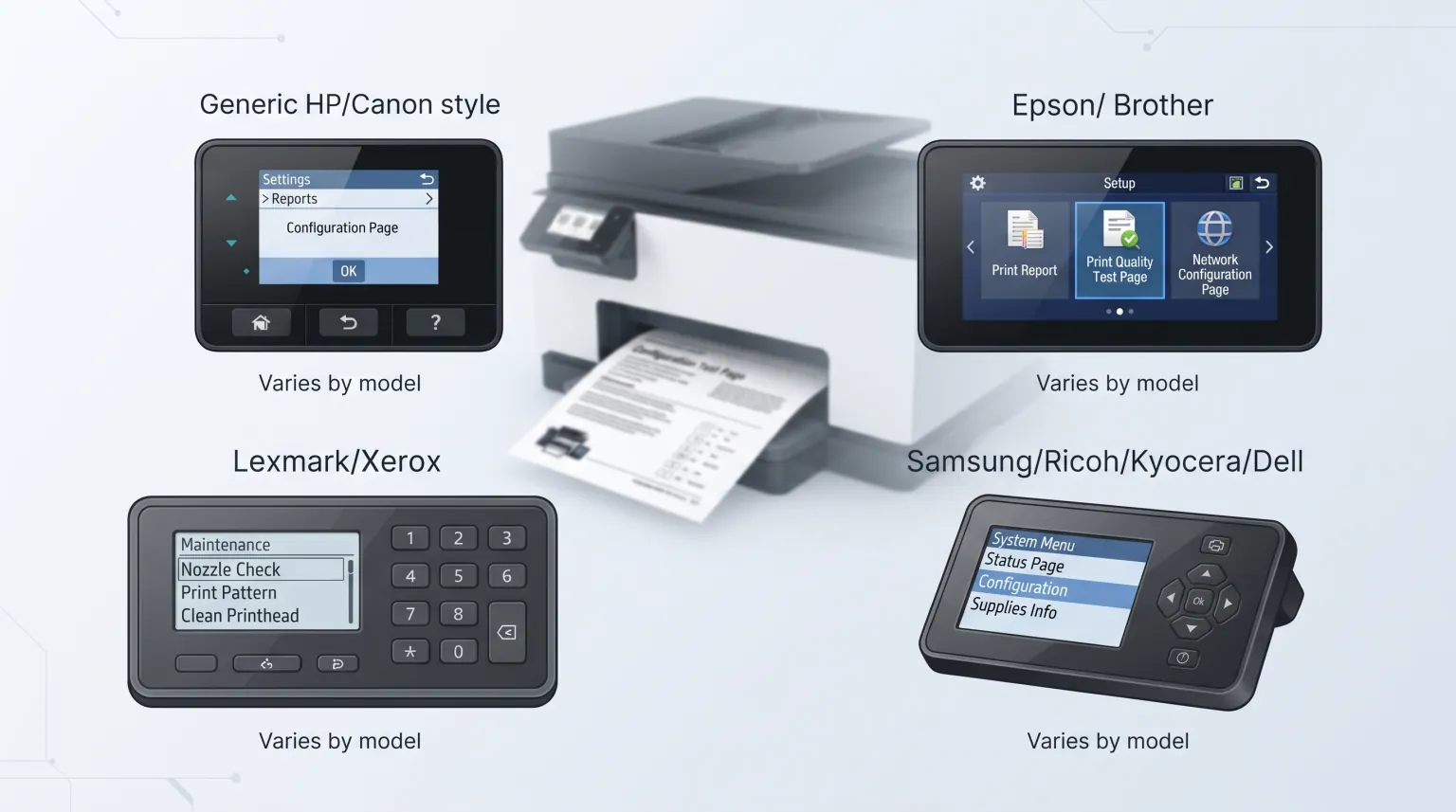
Finding the Option, by Brand
The exact menu wording and button layout varies by model and generation, even within the same brand — what follows is the general location to check on each. For the precise steps on your specific model, your printer's manual (usually searchable by model number online) will have it exactly.
HP
Most HP printers with a screen show a settings/gear icon or a network icon on the home screen — look under Setup, Reports, or Network for a "Print Report" or "Configuration Page" option. Full details on our HP test page.
Canon
Canon printers typically have this under a Setup or wrench-icon menu, listed as "Print Settings Report" or "Network Settings." On button-only models, holding the Wi-Fi and Stop/Reset buttons together for a few seconds is common, but varies by model. See our Canon test page.
Epson
Look for a Setup menu with a wrench icon, then "Network Settings" or "Print Status Sheet." Many Epson inkjets also print a nozzle check pattern from the same maintenance menu. More on our Epson test page.
Brother
On Brother's control panel, check Settings > Print Reports (or a similar wording) for "Printer Settings" or "Network Configuration." Details on our Brother test page.
Lexmark
Lexmark's menu system usually has this under Reports or Settings > Reports, labeled "Print Settings" or "Menu Settings Page." See our Lexmark test page.
Xerox
On Xerox devices, check the Device or Machine Status menu for a "Configuration Report" or "Information Pages" option. More on our Xerox test page.
Samsung
Samsung printers (now part of HP's printing line for newer models) list this under Setup or Machine Setup, usually as "Configuration Report." See our Samsung test page.
Ricoh
On Ricoh's control panel, check User Tools or Machine Features for a "Print Configuration Page" or "List/Test Print" option, common on their office multifunction printers. Details on our Ricoh test page.
Kyocera
Kyocera devices typically list this under System Menu > Report, as "Print Report" or "Status Page." See our Kyocera test page.
Dell
Dell printers (many built on Lexmark hardware) usually have this under Reports or Settings > Reports, similar to Lexmark's layout. More on our Dell test page.
What to Do With the Result
If the self-test page prints cleanly, the printer hardware is confirmed working — the issue with your original print job is almost certainly on the computer side (driver, spooler, or connection). If the self-test page itself fails, is blank, or shows print quality problems, that points to the printer, ink/toner, or paper path instead.
Frequently Asked Questions
My printer has no screen at all — can it still do this?
Usually yes, via a button combination (often holding two buttons together for several seconds), though the exact combo varies by model. Check your printer's manual for the specific buttons on your unit.
Does printing this way use much ink or toner?
No — a configuration or status page is a small amount of text and sometimes a simple graphic, not a full-page print job.
The self-test page prints fine, but my documents still won't. What now?
That confirms the printer hardware is working, so the problem is on the computer side. See our guide on what to check when a printer prints a test page but not real documents.